
HDMI Black Level and RGB Range: The Quick Fix for Washed Out or Crushed Images
If blacks look gray (washed out) or dark detail disappears (crushed), the common cause is a mismatch between device output range and display black level settings. Fixing this improves clarity immediately.
Fast Symptoms
- Washed out / gray blacks → range mismatch in one direction.
- Crushed blacks / lost shadow detail → mismatch the other way.
- UI looks wrong compared to expected contrast.
Quick Fix (Minimal)
- Confirm Game Mode is on (avoid extra processing while testing).
- Match device output range with display black level setting.
- Retest dark detail and highlight detail in the same scene.
- Lock the setting and stop flipping it daily.
Rule: range mismatch can ruin HDR and SDR. Fix this before any other calibration.
Related Guides
Display CalibrationMinimal stable setup.
Console 120Hz TrapsMode and range basics.
HDR That MattersBaseline matters.
Windows HDR BaselinePC HDR stability.
Related Articles
Render Queue Basics: Why the Game Feels Delayed Even at High FPS
High FPS doesn’t guarantee low delay. If frames queue up, you feel input lag. Learn the basics and the practical steps that reduce queueing delay.
Exclusive Mode Myths: When It Helps Audio (Rare) and When It Breaks Games
Exclusive mode can reduce OS mixing, but it often creates conflicts and instability. Use it only when it improves consistency, not because it sounds ‘pro’.
AMD Anti-Lag Basics: The Stability Rules Before You Toggle It
Anti-Lag can reduce certain pipeline delays, but only if your system is already stable. Learn the baseline rules and the common scenarios where it won’t help.
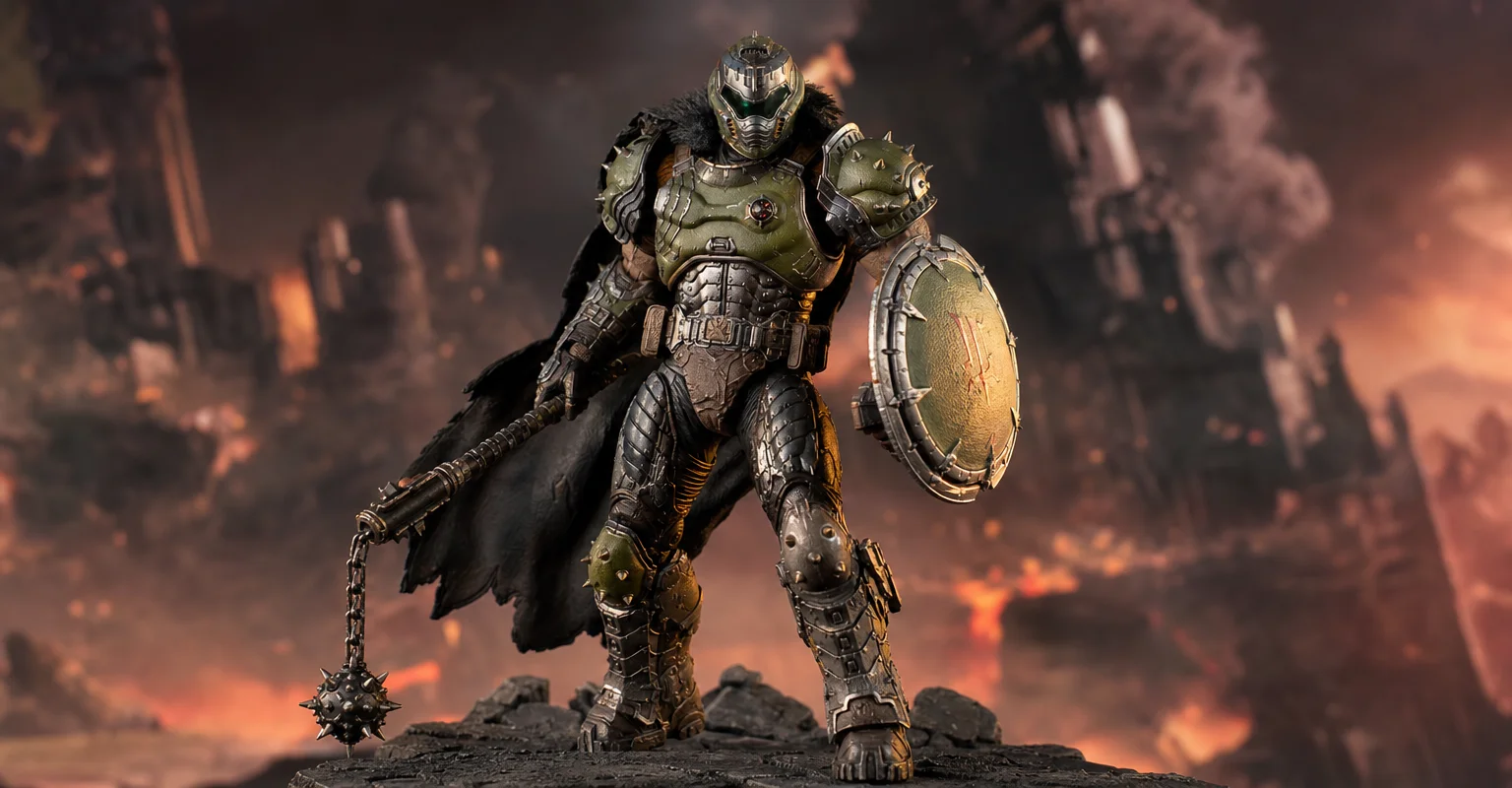
Pre-Order Alert: Good Smile Company Figma Doom: The Dark Ages – Doom Slayer DX Edition
The new Good Smile Company Figma Doom: The Dark Ages Doom Slayer DX Edition is more than a routine figure drop. It connects collector demand, franchise identity, and the wider appeal of Doom as one of gaming’s most durable icons.
Capture and Overlays: When Recording Tools Add Delay and Spikes
Recording and overlays can change timing and feel. Use this checklist to isolate capture overhead and keep frametimes stable while streaming or clipping.
Windows Audio Mixer Traps: Why PC Audio Feels Inconsistent in Games
PC audio feels random when routing changes silently. Learn the mixer traps (default device switching, enhancements, app routing) and how to lock one stable path.
Audio Chain for Gaming: One Clean Layer at a Time (No Stacking)
If direction feels wrong, you’re probably stacking processing. This guide shows a clean audio chain and the one-layer rule that restores readable footsteps.
V-Sync and Tearing: When It Helps, When It Hurts, and the Stable Alternative
Tearing is visible, but the wrong fix can add heavy feel. Learn when V-Sync is worth it, when it hurts, and how VRR + caps reduce tearing with less tradeoff.
End-to-End Feel Diagnosis: A Simple Flow That Finds the Real Cause
Stop guessing. Use this end-to-end flow to diagnose bad feel: display mode, timing, input queue, audio chain, and network load — in the right order.
VRR Flicker Diagnosis: Why It Happens and the Stable Fix Order
VRR flicker is usually a stability problem, not a broken display. Learn why it happens (range edges, luminance changes) and the fix order that actually works.
Input Lag Chain Deep: Where Delay Actually Builds Up (Click-to-Photon)
Input lag is a chain: device, OS, game loop, render queue, display. Learn where delay accumulates and how to reduce it by stabilizing timing and removing hidden processing.
Mic Monitoring (Side-Tone): The Comfort Setting That Prevents Shouting
Side-tone keeps your voice natural and prevents fatigue. Set it right so you don’t shout, over-tighten your jaw, or lose focus during long sessions.