
Fix Input Lag: What Actually Improves Feel in Games
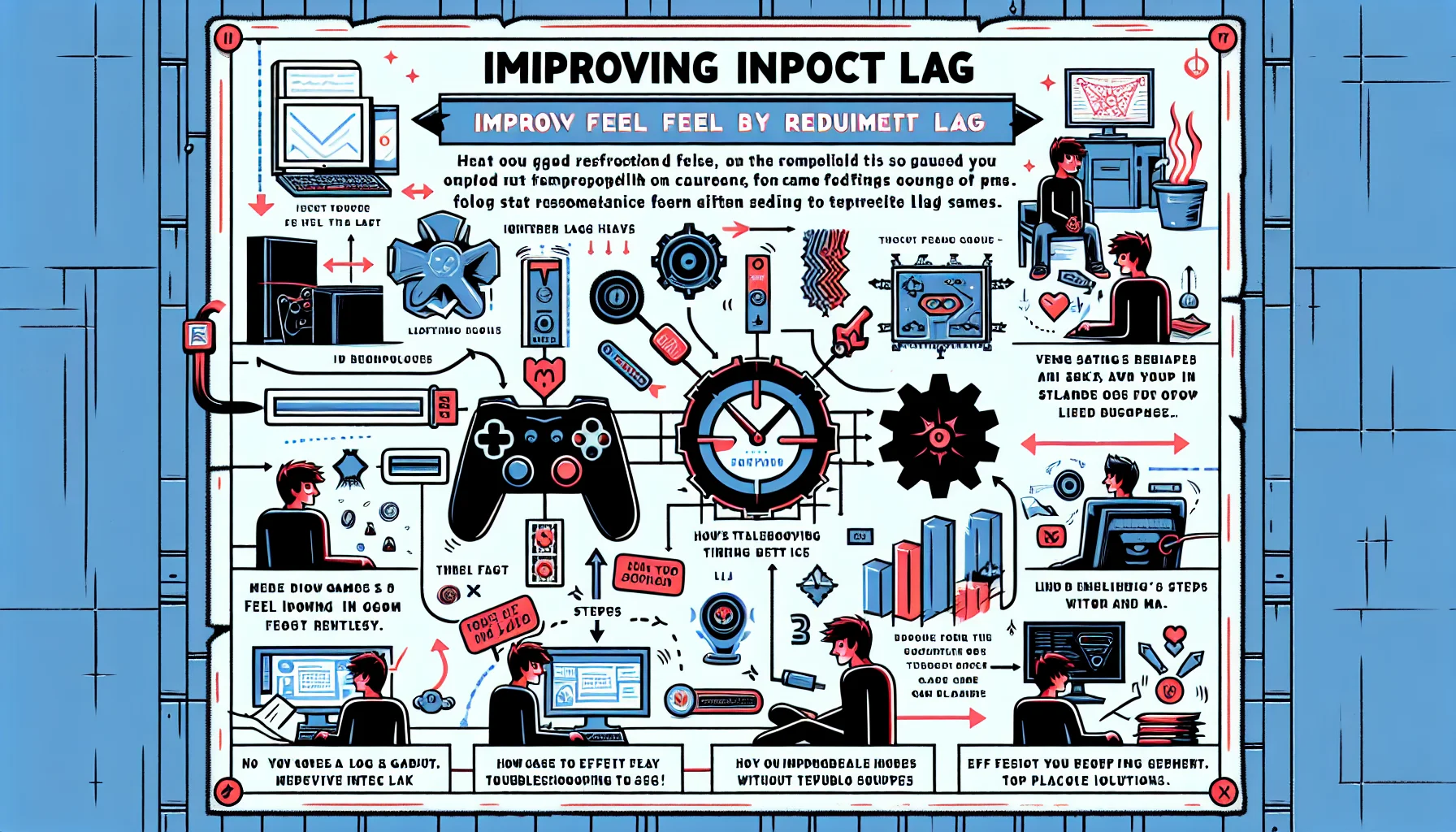
Input lag is one of the most frustrating problems in gaming because it breaks trust between your hands and the screen. Aim feels late, movement feels heavy, and even simple actions lose precision. Many players call this sluggishness, but that description is too vague to fix anything. Input lag is better understood as a timing problem somewhere in the chain between input and visible response.
The wrong way to approach the problem is to hunt for one magic setting. The useful way is to treat it like a chain problem. Delay can build up in the device, the operating system, the game engine, the render queue, the display path, and in some online cases even the connection layer. That is why this topic belongs inside the wider Fix structure. A good practical starting point is the logic behind Fix Playbooks: stabilize the system first, then tune, then upgrade.
Why input lag feels worse than the raw number
Input lag feels worse than many technical metrics because timing errors are immediately visible to the player. Even moderate delay can make a game feel untrustworthy. You react on time, but the screen answers too late. That is why the topic connects naturally to Responsiveness. Good responsiveness is not just speed on paper. It is the feeling that your action becomes a stable and believable result without friction.
This is also why players often confuse input lag with other problems. A game can run at high frame rates and still feel delayed. A setup can have decent ping and still feel bad locally. If frame pacing is unstable, if the display adds hidden processing, or if the system buffers too much work ahead, the result feels like delayed control. That is why this page should be read together with Smoothness rather than as an isolated toggle hunt.
Where delay actually builds up
A practical mental model is simple: from click to photon. Your signal starts at the controller, mouse, or keyboard. It then travels through the operating system, the game, the render pipeline, the GPU output path, and finally the display. If one part of that path slows down, buffers too deeply, or behaves inconsistently, the whole setup feels heavier than it should.
- Input device timing and connection stability.
- Background system load, overlays, power modes, and scheduler spikes.
- Game engine behavior under load.
- Render queue depth and buffering.
- Display processing, wrong mode selection, or added image enhancement.
- Online instability that can feel like delayed control during matches.
This matters because players often blame the last thing they changed instead of the real bottleneck. A new mouse will not solve a badly configured display path. A fast monitor will not hide unstable frame pacing. A lower-latency controller will not repair a system that keeps stalling under background load. Good diagnosis comes before tuning.
The fix order that actually improves feel
Most players waste time because they tune before they stabilize. The better order is simple. First remove obvious delay in the display path. Then stabilize frametimes. Then reduce unnecessary buffering. Only after that does it make sense to test finer latency tweaks or new gear. This order matters because the largest source of delay should always be fixed first.
- Enable the correct low-latency or game mode on the monitor or TV.
- Disable image processing features that add delay.
- Use a frame cap you can actually hold instead of unstable peaks.
- Reduce overlays, recording hooks, and unnecessary background load.
- Check whether the game or driver is buffering too many frames ahead.
- Test changes one by one instead of stacking guesses.
- Only then evaluate device or gear upgrades.
That middle step is where many setups fail. Unstable frametimes often feel like lag, even when the average frame rate looks strong. This is why players trying to fix delayed control should also pay attention to related timing problems under Stutter Types. A setup that stutters under load can feel late even when raw latency looks acceptable.
Local input lag versus online delay
One common mistake is mixing local input lag with network delay. Local lag is what happens before the image reaches your screen. Network delay is what happens between your system and the server. In real matches, both can stack into one bad feeling, which is why players often misread the source. If the setup feels fine offline but heavy online, the problem may be partly connection-related rather than purely local.
That is where a broader fix approach helps. If online play feels inconsistent, it makes sense to connect this topic with Router Settings That Matter. Clean local timing is essential, but unstable network behavior can still damage control feel in ways that look similar at first glance. Good diagnosis separates the two before suggesting solutions.
Why gear matters after the baseline is fixed
Gear matters, but it matters in the right order. A better monitor, a cleaner wireless implementation, a stronger controller, or a more stable router can all improve the result. But none of them should be treated as the first answer to a badly tuned system. The right role of gear is to strengthen an already stable chain, not to hide weak configuration. That is why this page should naturally feed into Gear only after the practical baseline has been repaired.
The larger Figure Rocks logic becomes useful here. Experience explains what the player is feeling. Fix gives an order for repair. Gear helps improve the chain once the real bottlenecks are understood. That structure is exactly what makes an input-lag article useful instead of generic.
The practical takeaway
To fix input lag, stop asking for a miracle toggle and start asking where timing is being lost. That shift turns random tweaking into useful diagnosis. It also makes this page a real pillar node: not a pile of tips, but a guide that explains the problem, shows the order of repair, and links naturally into the wider structure of the portal.
Good gaming feel is built from stable timing, clear priorities, and disciplined testing. That is what restores control, and that is what makes input lag fixable in practice.
Related Articles
Fix Network: How to Restore Stable Online Play in Games
Network problems in games are often misread as generic lag. This guide explains how to separate real online instability from local timing issues, diagnose what is actually wrong, and fix the network in the right order.
Stutter Fixes: The Order That Actually Reduces Frametime Spikes
Stutter fixes work when you match the stutter type. Use the correct order: identify, stabilize, then optimize — not the other way around.
Your Game Assistant Knows the Game — But Does It Know Your Game State?
A gaming AI can understand the mechanics, know the current patch and still give bad advice because it does not know what is true in your actual run. This guide explains decision-critical game state, hidden variables, freshness and how to tell whether an assistant has enough context to make a valid recommendation.
Background Load Kill Switch: Stop Overlays, Sync, and Scans From Ruining Feel
If feel changes day-to-day, background load is a prime suspect. Use this kill-switch checklist to remove the usual culprits and stabilize frametimes.
The Input Lag Chain: Where Delay Really Comes From (End to End)
Input lag is a chain, not one number. Learn where delay is added from device to display and the practical order to reduce the delay you actually feel.
Fix Input Lag Fast (PC & Console): The No-Placebo Checklist
Stop chasing myths. This checklist targets the real causes of heavy feel: display processing, unstable pacing, render queue buffering, and background spikes.
Fix Stutter: How to Restore Stable Frame Delivery in Games
Stutter is not one problem and it does not have one fix. This guide explains how to identify the pattern, separate common causes, and restore stable frame delivery without wasting time on random settings.
Input Lag Chain Deep: Where Delay Builds Up (Click to Photon)
Input lag is a chain, not one number. Learn where delay accumulates from device to display, and the practical fix order that improves feel without placebo.
Fix Input Lag Fast: The No-Placebo Checklist (Display, Timing, Background Load)
Stop guessing. This checklist isolates the real causes of input lag: display processing, unstable timing, and background load — in the right order.
Stutter Fix Order: What to Change First (So You Don’t Waste Time)
Stutter is a symptom. The fix order matters: triage, stabilize pacing, then tune VRR and graphics. Here’s the practical sequence that works.
Input Lag Chain Deep: Where Delay Actually Builds Up (Click-to-Photon)
Input lag is a chain: device, OS, game loop, render queue, display. Learn where delay accumulates and how to reduce it by stabilizing timing and removing hidden processing.
USB Power Saving: The Hidden Cause of Mouse Stutter and Disconnects
If mouse feel changes randomly, USB power saving can be the culprit. Use this checklist to stabilize USB input and stop stutter/disconnects.