
Stutter Fixes: The Order That Actually Reduces Frametime Spikes
Most stutter ‘fixes’ fail because they treat all spikes as the same. First identify shader vs CPU vs streaming stutter, then apply stability-first fixes in order.
Stability-First Fix Order
- Identify the stutter type (repeat path, observe patterns).
- Use a realistic frame cap to reduce variance.
- Reduce background CPU and disk load.
- Then tune settings for your target FPS inside the stable range.
The Common Mistake
People raise graphics settings or enable features first, then complain that VRR or HDR feels worse. Unstable frametimes make every feature look bad.
Rule: fix spikes before you chase visuals. Smooth feel is timing, not settings labels.
Related Guides
Stutter TypesIdentify shader, CPU, and streaming stutter fast.
Frame PacingStable frametimes are what you feel.
VRR Setup GuideVRR needs stable pacing.
PlaybooksStep by step fixes for better feel.
Related Articles
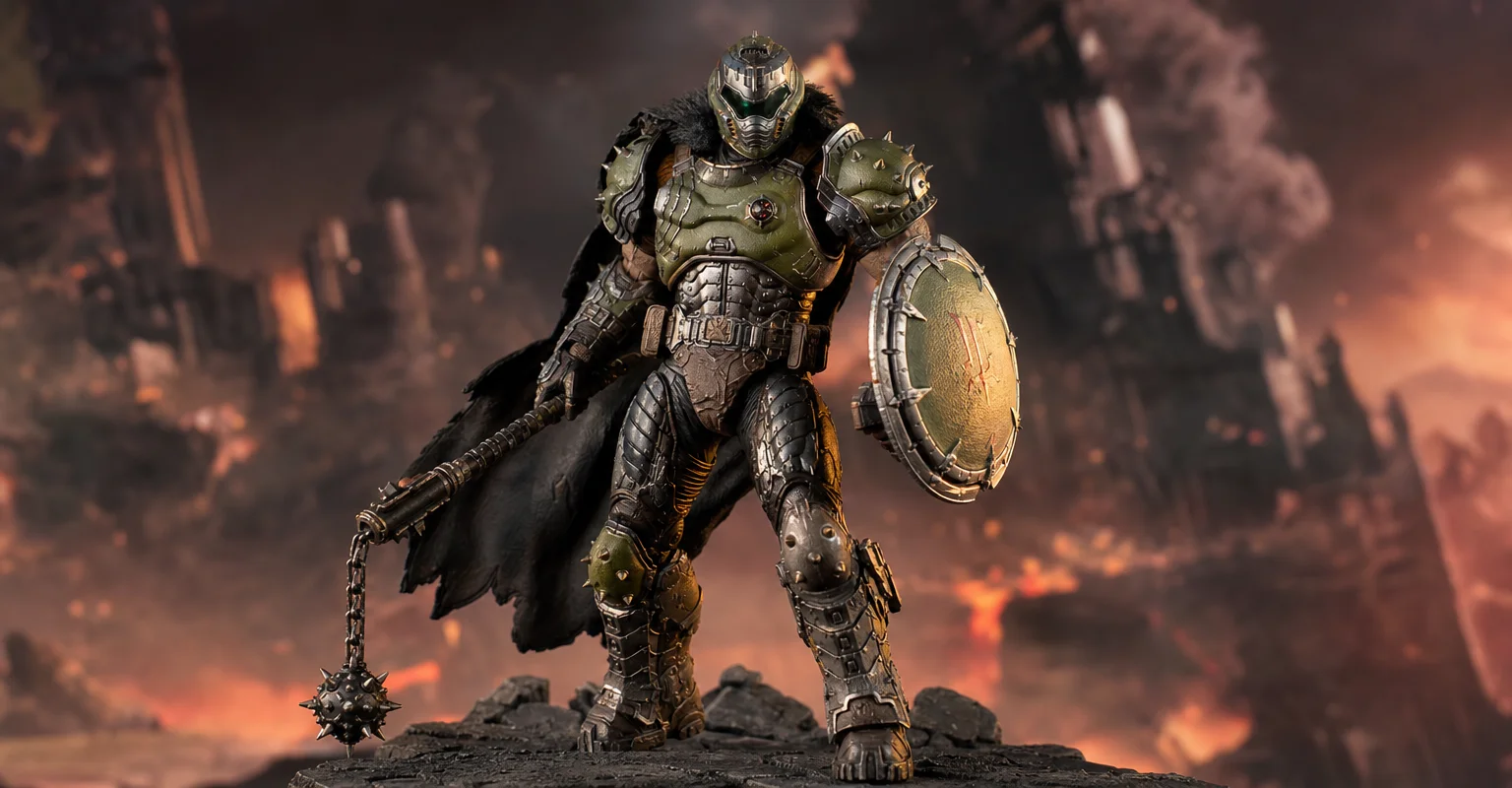
Pre-Order Alert: Good Smile Company Figma Doom: The Dark Ages – Doom Slayer DX Edition
The new Good Smile Company Figma Doom: The Dark Ages Doom Slayer DX Edition is more than a routine figure drop. It connects collector demand, franchise identity, and the wider appeal of Doom as one of gaming’s most durable icons.
Audio Chain for Gaming: One Clean Path from Game to Ears
Audio positioning improves when the chain is clean and stable. Build one path: one device, one mode, minimal processing, consistent levels.
BFI and Strobing: Clarity vs Flicker vs Latency (The Honest Tradeoff)
BFI/strobing can boost clarity, but it can also add flicker, reduce brightness, and break VRR. Use this guide to decide if the tradeoff is worth it.
Capture and Overlays: When Recording Tools Add Delay and Spikes
Recording and overlays can change timing and feel. Use this checklist to isolate capture overhead and keep frametimes stable while streaming or clipping.
What Does “Future-Proof” Gaming Hardware Mean in the Neural Rendering Era?
Future-proofing used to mean buying more CPU, GPU and VRAM than you needed today. Neural rendering makes that rule less reliable. Here is a better decision framework.
Spatial Audio Stacking: The Fast Way to Stop Confused Direction
Direction breaks when you stack spatial processing layers (game + system + headset app). Use one layer at a time and your cues become readable again.
Router QoS vs SQM: Which Actually Fixes Lag Spikes Under Load?
Many QoS features are marketing. SQM (queue management) targets latency under load — the real cause of bufferbloat spikes. Here’s the practical difference.
V-Sync and Tearing: When It Helps, When It Hurts, and the Stable Alternative
Tearing is visible, but the wrong fix can add heavy feel. Learn when V-Sync is worth it, when it hurts, and how VRR + caps reduce tearing with less tradeoff.
Console 120Hz Traps: Why 120 Can Feel Worse Than 60
120Hz only feels better if the chain is correct. Wrong mode, wrong refresh handshake, unstable pacing, or broken VRR can make 120Hz feel worse than stable 60Hz.
Console Audio Modes: Stereo, Surround, and Why Auto Often Fails
Auto audio modes can change your cues mid-session. Learn how console audio modes interact with games and headsets, and how to lock a stable mode for readable direction.
Router Checklist for Gaming: The 10 Settings That Prevent Spikes
Most routers can game well if you remove the spike generators. Use this simple checklist: queue management, sane Wi-Fi, and stable load behavior.
Input Lag Chain Deep: Where Delay Builds Up (Click to Photon)
Input lag is a chain, not one number. Learn where delay accumulates from device to display, and the practical fix order that improves feel without placebo.