
Reduce Input Lag Fast: The No-Placebo Checklist
If control feels delayed, you want the fastest wins: correct display mode, stable timing, and low background load. Most tweaks beyond that are noise.
The Fast Checklist
- Game Mode on the correct input (no motion smoothing).
- Correct refresh rate selected (device + display).
- Stabilize frame pacing with a realistic cap.
- Close background downloads/uploads and heavy apps.
- Avoid stacked audio/display processing while testing.
Common Traps
- Changing sensitivity instead of fixing timing.
- Testing VRR/HDR while stutter is still present.
- Assuming ‘low ping’ equals low input lag.
Rule: remove the biggest delay sources first. If you do not feel a change instantly, it’s usually not the real problem.
Related Guides
Latency ChainMap the delay sources end-to-end.
Game Mode ExplainedThe biggest fast win for many setups.
Frame PacingTiming drives feel.
PlaybooksStep by step fixes for better feel.
Related Articles
Background Load Killers: The PC Checklist That Stops Random Heavy Feel
If the same game feels great one day and heavy the next, suspect background load. This checklist removes the common culprits: overlays, sync, scans, and scheduling spikes.
Comfort to Control: Why Ergonomics Improves Aim More Than You Think
Ergonomics is not optional. Fatigue changes grip, timing, and precision. Use a simple comfort baseline so your control stays consistent for hours.
VRR Range Basics: Why the Same Setup Feels Great in One Game and Bad in Another
VRR isn’t magic. If your FPS lives outside the VRR range, feel becomes inconsistent. Learn range basics, edge bouncing, and how to stay stable.
Audio Chain Baseline: One Clean Path That Fixes Most Footstep Confusion
Footsteps become readable when your audio path is clean and consistent. This baseline removes stacked processing, wrong modes, and unstable levels that destroy direction cues.
Fix Input Lag Fast (PC & Console): The No-Placebo Checklist
Stop chasing myths. This checklist targets the real causes of heavy feel: display processing, unstable pacing, render queue buffering, and background spikes.
BFI and Strobing: Clarity vs Flicker vs Latency (The Honest Tradeoff)
BFI/strobing can boost clarity, but it can also add flicker, reduce brightness, and break VRR. Use this guide to decide if the tradeoff is worth it.
Controller Wired vs Wireless: Latency, Stability, and the Real Tradeoff
Wired is not always faster, but it is often more stable. Learn what actually changes with wired vs wireless controllers and how to choose the setup with consistent feel.
Display Processing Traps: The Settings That Secretly Ruin Clarity and Feel
Many displays ship with processing that looks ‘nice’ in movies but breaks gaming: added latency, artifacts, and instability. Here’s the short list to disable and why.
Router Checklist for Gaming: The Settings That Actually Matter
Most router tweaks don’t help. These settings do: queue management under load, stable Wi-Fi behavior, and avoiding features that add latency or instability.
Router QoS vs SQM: Which Actually Fixes Lag Spikes Under Load?
Many QoS features are marketing. SQM (queue management) targets latency under load — the real cause of bufferbloat spikes. Here’s the practical difference.
Storage Streaming Stutter Fixes: When Assets Can’t Keep Up
Streaming stutter happens when new areas load: storage, decompression, or asset streaming limits. Use this fix order before you drop every graphics setting.
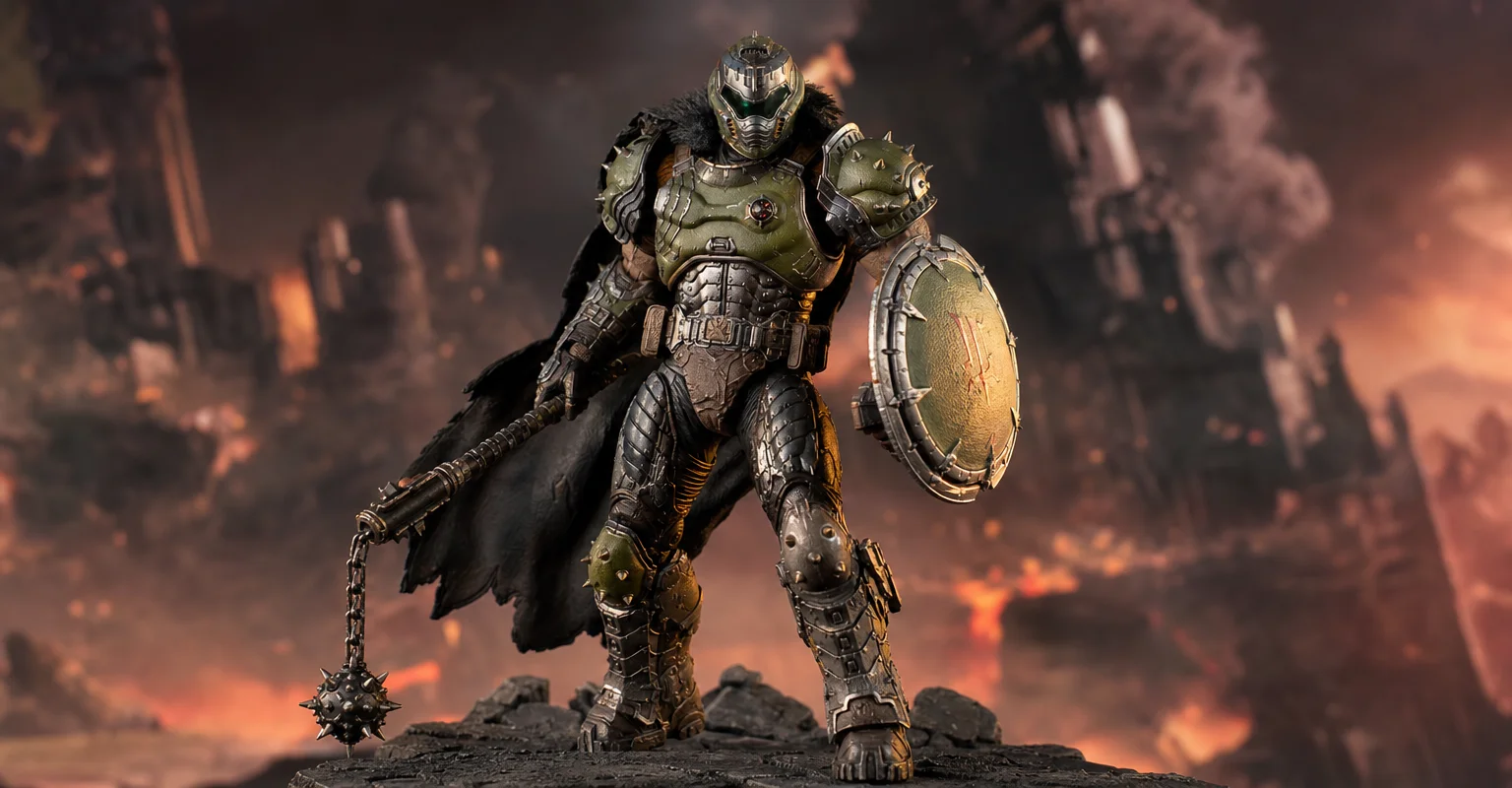
Pre-Order Alert: Good Smile Company Figma Doom: The Dark Ages – Doom Slayer DX Edition
The new Good Smile Company Figma Doom: The Dark Ages Doom Slayer DX Edition is more than a routine figure drop. It connects collector demand, franchise identity, and the wider appeal of Doom as one of gaming’s most durable icons.