
Router Checklist for Gaming: Settings That Actually Change Stability
Router marketing is loud. Gaming feel is simple: stable latency under load, stable Wi-Fi, and fewer spikes. This checklist targets the settings that matter and ignores the rest.
The Checklist
- Confirm firmware is current and stable (don’t beta-test during ranked).
- Enable sane queue management to control latency under load.
- Set Wi-Fi band/channel for stability (not maximum width).
- Disable unnecessary ‘boost’ features that add variability.
- If possible: prioritize gaming device traffic during household load.
How to Validate
- Test latency under load, not only idle ping.
- Repeat at peak hours to catch congestion patterns.
- Compare Ethernet vs Wi-Fi to isolate interference.
Rule: if you can’t measure improvement under load, the setting is probably noise.
Related Guides
Network Test Under LoadCorrect validation method.
Queue ManagementFix bufferbloat.
Wi-Fi Channel PicksReduce interference spikes.
Ethernet vs Wi-FiBaseline for consistency.
Related Articles
Input Stability Week: The 7-Day Plan to Lock Consistent Feel
Your setup won’t feel consistent if you change five variables a day. Use this 7-day plan to lock a baseline, isolate issues, and keep control stable.
Frame Cap Recipes: Stable Targets for VRR and Non-VRR Setups
A good cap feels better than unstable peaks. Use these simple cap recipes to stabilize frame pacing for VRR and non-VRR displays.
Console 120Hz Traps: Wrong Port, Wrong Mode, and Hidden Limits
120Hz often fails because of simple mismatches: wrong HDMI port, wrong input mode, or disabled features. Use this quick checklist to get true 120Hz.
Motion Clarity for Gaming: Blur Sources and the Fix Order That Works
Motion clarity isn’t one setting. Blur comes from multiple sources. Use this fix order to improve readability without adding latency or artifacts.
V-Sync and Tearing: When It Helps, When It Hurts, and the Stable Alternative
Tearing is visible, but the wrong fix can add heavy feel. Learn when V-Sync is worth it, when it hurts, and how VRR + caps reduce tearing with less tradeoff.
Background Load Killers: The PC Checklist That Stops Random Heavy Feel
If the same game feels great one day and heavy the next, suspect background load. This checklist removes the common culprits: overlays, sync, scans, and scheduling spikes.
Exclusive Mode Myths: When It Helps Audio (Rare) and When It Breaks Games
Exclusive mode can reduce OS mixing, but it often creates conflicts and instability. Use it only when it improves consistency, not because it sounds ‘pro’.
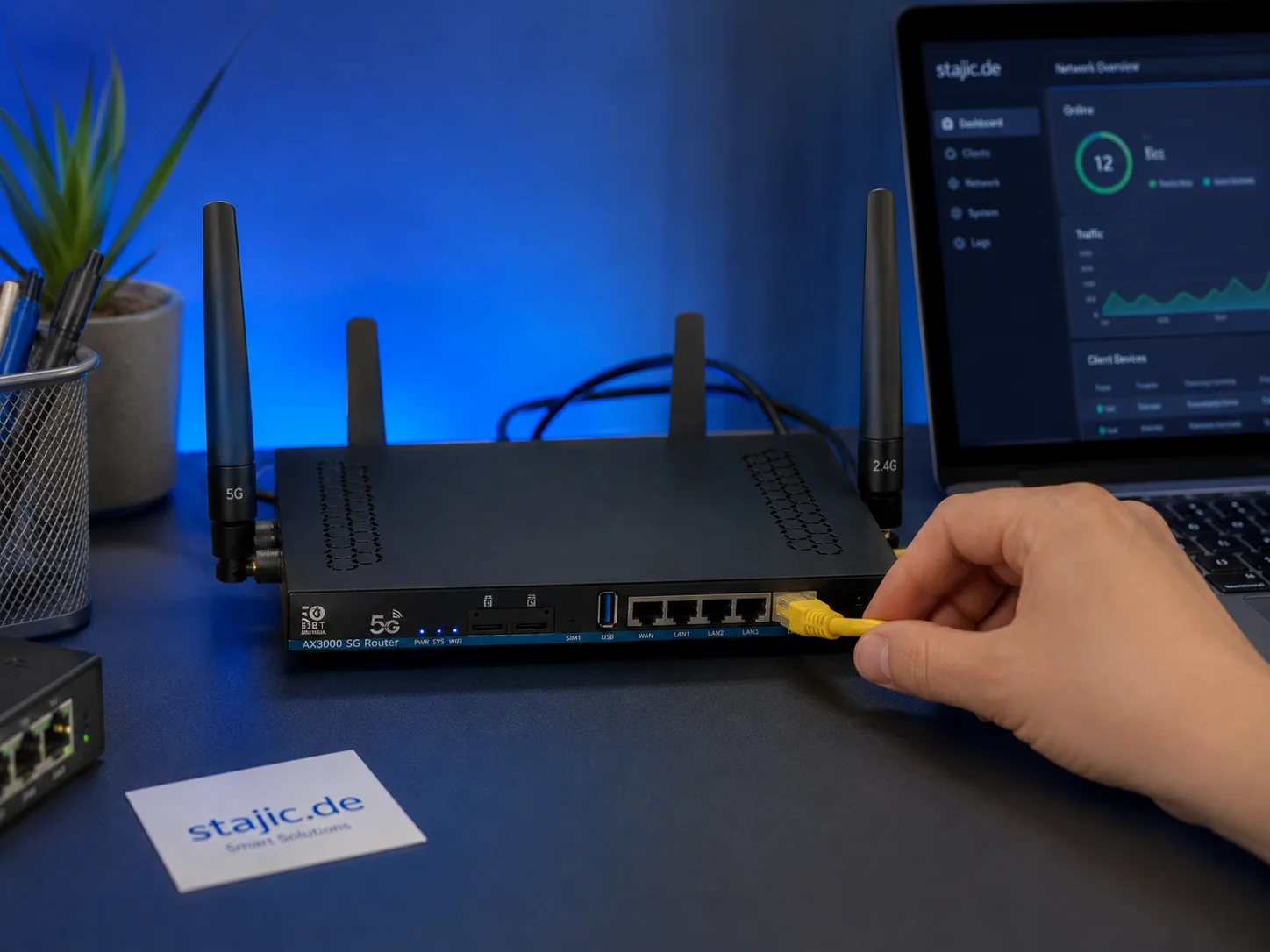
Why a 5G OpenWrt Router Can Be a Smart Upgrade for Gaming, Streaming and Mobile Work
A 5G OpenWrt router like the ZBT Z8102AX is more than a simple internet box. For gaming, streaming, mobile work and backup internet, it can become a flexible network platform with 5G connectivity, external antennas, dual-SIM potential and more control than many closed consumer routers.
Windows HDR Quick Baseline: A Simple Setup That Prevents Dim and Washed Out HDR
PC HDR often looks wrong because the baseline is wrong. Use this minimal Windows HDR setup to keep highlights readable and avoid dim, washed images.
Display Processing Traps: The Settings That Secretly Ruin Clarity and Feel
Many displays ship with processing that looks ‘nice’ in movies but breaks gaming: added latency, artifacts, and instability. Here’s the short list to disable and why.
Router Checklist for Gaming: The 10 Settings That Prevent Spikes
Most routers can game well if you remove the spike generators. Use this simple checklist: queue management, sane Wi-Fi, and stable load behavior.
Comfort to Control: Why Ergonomics Improves Aim More Than You Think
Ergonomics is not optional. Fatigue changes grip, timing, and precision. Use a simple comfort baseline so your control stays consistent for hours.