
120Hz Feels Worse? Diagnosis Checklist (Wrong Mode, VRR Range, Caps)
If 120Hz feels worse than 60Hz, the hardware is usually not the problem. The baseline is. Higher refresh exposes unstable pacing, wrong display mode, or VRR range behavior. Diagnose in order and stop guessing.
Diagnosis Checklist
- Verify the device is truly outputting 120Hz (not just selected).
- Enable Game Mode on the correct input and disable processing.
- Apply a stable frame cap that stays inside VRR range (if VRR is on).
- If flicker appears, test VRR off in the same scene and choose stability.
- If stutter persists, identify stutter type (shader/CPU/streaming).
Rule: higher Hz does not fix unstable timing — it reveals it.
Related Guides
Game ModeCorrect mode first.
Frame Cap RecipesStabilize timing at higher Hz.
VRR Flicker DiagnosisRange and caps matter.
Stutter TypesIdentify the real cause.
Related Articles
Stutter Fixes That Stick: The Stability-First Playbook
Most stutter fixes fail because they skip triage. Use this playbook: identify stutter type, stabilize pacing, reduce spikes, then tune visuals last.
Audio Chain for Gaming: One Clean Layer at a Time (No Stacking)
If direction feels wrong, you’re probably stacking processing. This guide shows a clean audio chain and the one-layer rule that restores readable footsteps.
Fix Input Lag Fast (PC & Console): The No-Placebo Checklist
Stop chasing myths. This checklist targets the real causes of heavy feel: display processing, unstable pacing, render queue buffering, and background spikes.
Background Load Killers: The PC Checklist That Stops Random Heavy Feel
If the same game feels great one day and heavy the next, suspect background load. This checklist removes the common culprits: overlays, sync, scans, and scheduling spikes.
Borderless vs Exclusive Fullscreen: When It Matters for Feel and Stability
Most of the time, it doesn’t matter. But in some setups, window mode affects timing, overlays, and stability. Here’s when to care and how to decide.
CPU-Bound Stutter Deep: Why FPS Can Look Fine but Feel Terrible
CPU spikes create uneven frametimes that you feel as micro-stutter, heavy aim, and inconsistent motion. Learn the signs and the fix order that restores stable feel.
QoS Myths for Gaming: What Helps, What Hurts, and the Real Priority
QoS is not a magic ‘gaming’ toggle. Good queue management reduces latency under load. Bad QoS adds jitter or breaks fairness. Here’s the stable way to think about it.
Overdrive Tuning: The Clean Way to Reduce Blur Without Ghosting
Overdrive can improve clarity or add ugly halos. Use this simple method to pick the clean middle setting that reduces blur without ghosting artifacts.
Display Processing Traps: The Settings That Secretly Ruin Clarity and Feel
Many displays ship with processing that looks ‘nice’ in movies but breaks gaming: added latency, artifacts, and instability. Here’s the short list to disable and why.
TV Local Dimming Tuning for Games: Keep Detail Without Flicker
Local dimming can improve contrast or ruin stability with pumping and crush. Use this practical tuning order to keep detail and readable highlights without flicker.
End-to-End Feel Diagnosis: A Simple Flow That Finds the Real Cause
Stop guessing. Use this end-to-end flow to diagnose bad feel: display mode, timing, input queue, audio chain, and network load — in the right order.
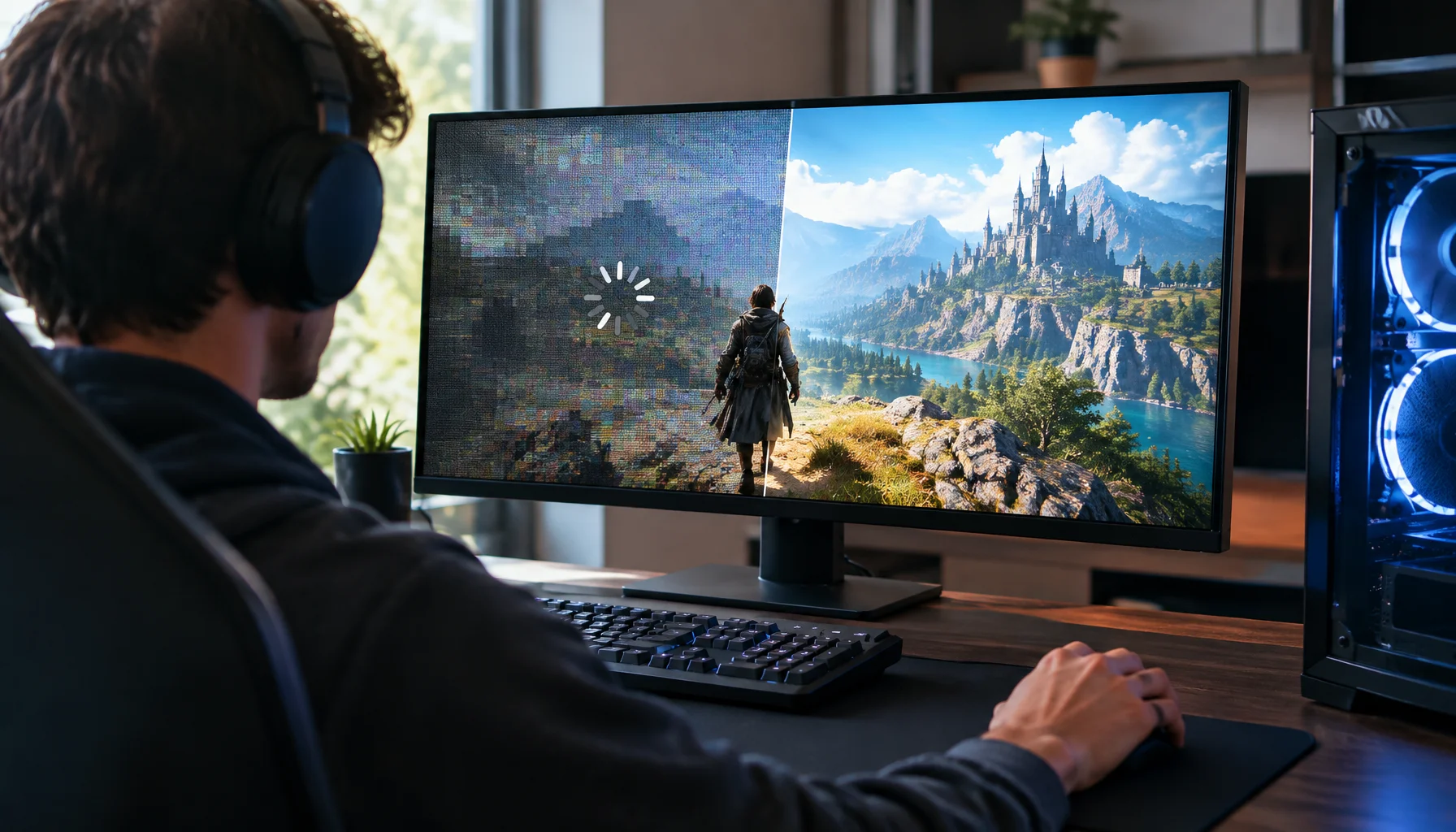
Why PC Games Stutter When Compiling Shaders — and How Advanced Shader Delivery Changes It
Shader stutter happens when a PC game has to compile GPU programs at the wrong moment. Microsoft Advanced Shader Delivery moves much of that work off the player’s PC by preparing hardware-specific shaders ahead of time and delivering them with the game.