
Router Checklist for Gaming: The 10 Settings That Actually Matter
Gaming router success is about stability under load, not peak speed. This checklist focuses on the settings that reduce spikes, prevent bufferbloat, and keep latency consistent.
The Checklist (Practical)
- Place router for low obstacles and short distance.
- Use a clean Wi-Fi channel (avoid congestion).
- Separate 2.4GHz and 5/6GHz if auto-steering is unstable.
- Enable sane queue management/QoS for latency under load.
- Avoid double NAT where possible.
- Update firmware if stability bugs exist.
- Disable unnecessary traffic-shaping features that add jitter.
- Stop background uploads during play.
- Prefer Ethernet for competitive sessions.
- Retest under real load and keep the stable configuration.
Rule: test under real load. If you test idle, you will misjudge your setup.
Related Guides
Queue ManagementFix bufferbloat spikes.
Wi-Fi for GamingDistance and interference rules.
Ethernet vs Wi-FiReduce variables.
Network StabilityConsistency beats averages.
Related Articles
Storage Streaming Stutter Fixes: When Assets Can’t Keep Up
Streaming stutter happens when new areas load: storage, decompression, or asset streaming limits. Use this fix order before you drop every graphics setting.
Shader Stutter: Why First Runs Hitch and How to Reduce It
Shader stutter happens when new effects compile in real time. Learn how to identify it fast and the practical ways to reduce hitches without placebo tweaks.
Motion Clarity for Gaming: Blur Sources and the Fix Order That Works
Motion clarity isn’t one setting. Blur comes from multiple sources. Use this fix order to improve readability without adding latency or artifacts.
Input Lag Chain Deep: Where Delay Builds Up (Click to Photon)
Input lag is a chain, not one number. Learn where delay accumulates from device to display, and the practical fix order that improves feel without placebo.
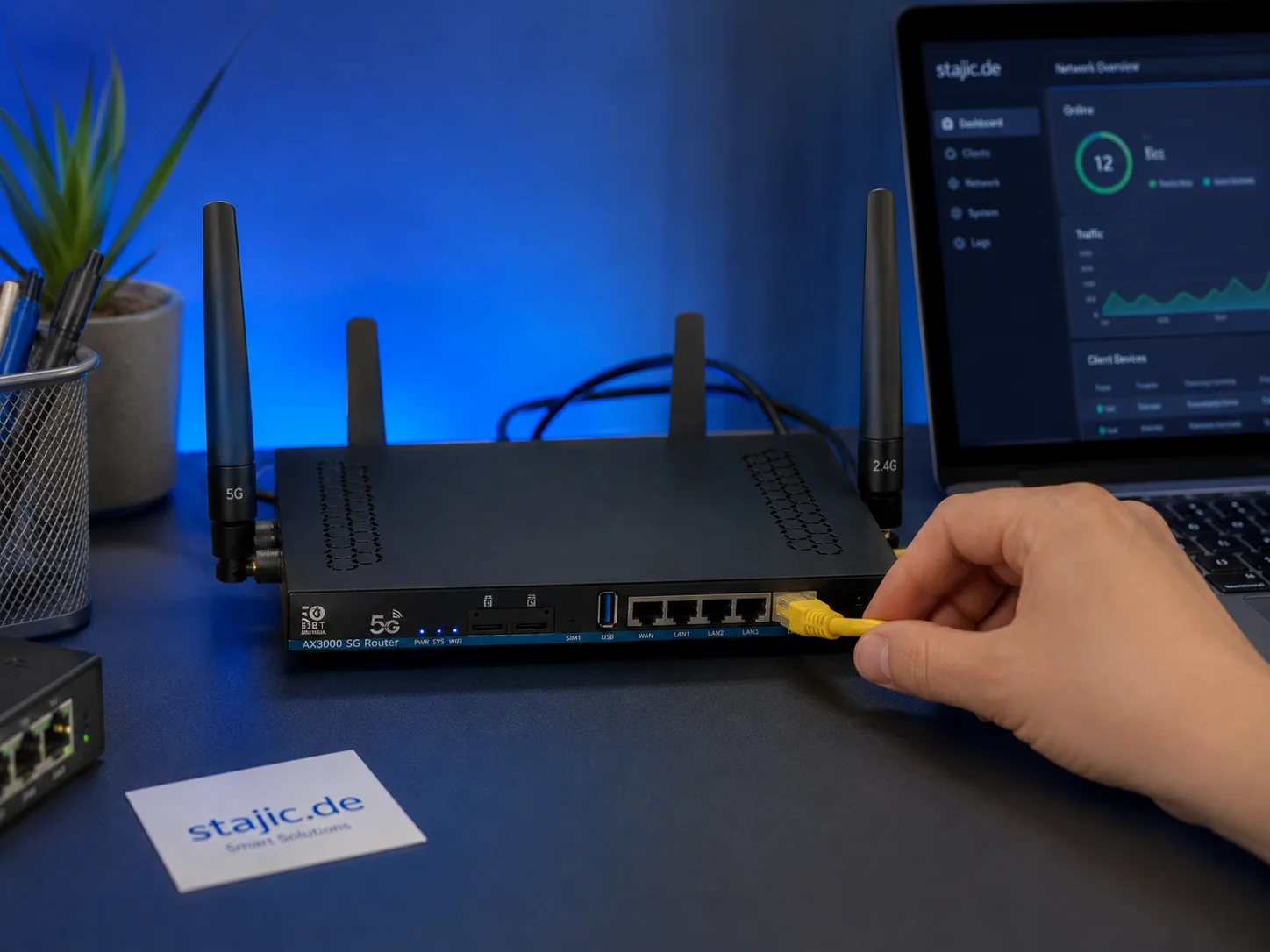
Why a 5G OpenWrt Router Can Be a Smart Upgrade for Gaming, Streaming and Mobile Work
A 5G OpenWrt router like the ZBT Z8102AX is more than a simple internet box. For gaming, streaming, mobile work and backup internet, it can become a flexible network platform with 5G connectivity, external antennas, dual-SIM potential and more control than many closed consumer routers.
Router Placement for Gaming: Distance and Obstacles That Create Spikes
Before you buy a new router, fix the environment. Placement, obstacles, and interference create spikes that feel like lag and stutter.
Stutter Fixes That Actually Work: Stop Chasing Random Graphics Tweaks
Most stutter ‘fixes’ fail because they don’t match the stutter type. Use this practical order: triage, reduce spikes, stabilize pacing, then tune settings.
Console 120Hz Traps: Why 120 Can Feel Worse Than 60
120Hz only feels better if the chain is correct. Wrong mode, wrong refresh handshake, unstable pacing, or broken VRR can make 120Hz feel worse than stable 60Hz.
Latency Chain Explained: Where Delay Actually Comes From (End to End)
Input lag is a chain, not one setting. Learn where delay comes from (device, render queue, display) and the fix order that actually improves feel.
TV Local Dimming Tuning for Games: Keep Detail Without Flicker
Local dimming can improve contrast or ruin stability with pumping and crush. Use this practical tuning order to keep detail and readable highlights without flicker.
Wireless Controller Latency: Myths, Reality, and the One Baseline That Matters
Wireless isn’t automatically bad. Feel breaks when timing is unstable. Learn the real sources of controller delay and the baseline that makes it consistent.
QoS Myths for Gaming: What Helps, What Hurts, and the Real Priority
QoS is not a magic ‘gaming’ toggle. Good queue management reduces latency under load. Bad QoS adds jitter or breaks fairness. Here’s the stable way to think about it.