
Overdrive Tuning: The Clean Way to Reduce Blur Without Ghosting
Overdrive changes pixel response behavior. Too low and you get smear; too high and you get halos/ghost trails. The goal is the clean middle setting that improves clarity without adding artifacts.
What to Look For
- Too low: smearing behind moving objects.
- Too high: bright halos, inverse ghosting trails.
- Just right: clean edges in motion with minimal artifacts.
The Simple Method
- Enable Game Mode / low-latency mode first.
- Use a consistent test: fast camera pan in the same scene.
- Start in the middle overdrive setting.
- Go one step higher: if halos appear, go back.
- Lock the cleanest setting and stop changing it.
Rule: don’t chase maximum. Overdrive is best when it stays invisible.
Related Guides
Motion ClarityBlur sources + fix order.
Game Mode ExplainedLow-latency baseline.
Frame Cap RecipesStable caps improve clarity.
GearHardware that shapes feel.
Related Articles
Borderless vs Exclusive Fullscreen: When It Matters for Feel and Stability
Most of the time, it doesn’t matter. But in some setups, window mode affects timing, overlays, and stability. Here’s when to care and how to decide.
Display Processing Traps: The Settings That Secretly Ruin Clarity and Feel
Many displays ship with processing that looks ‘nice’ in movies but breaks gaming: added latency, artifacts, and instability. Here’s the short list to disable and why.
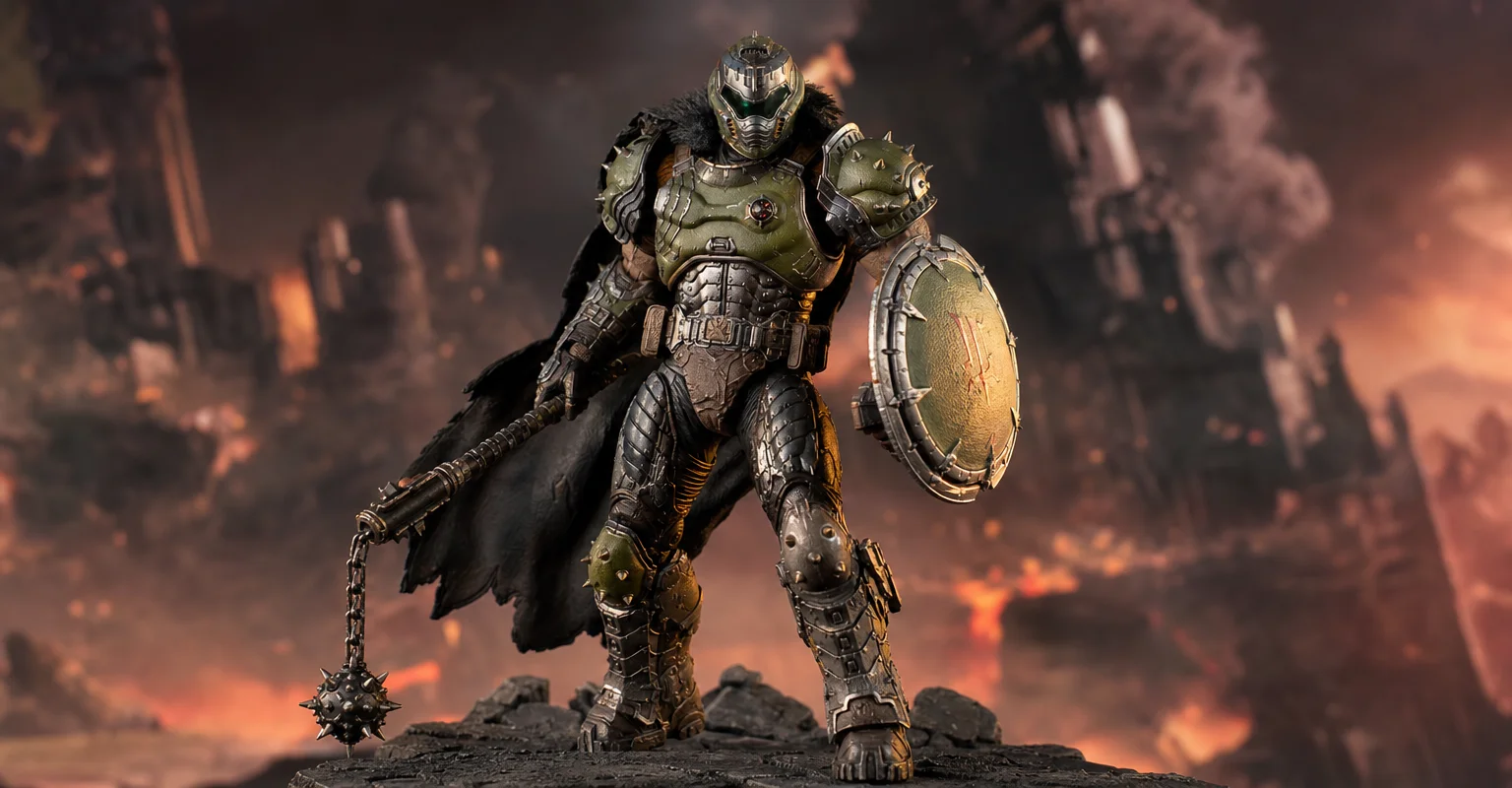
Pre-Order Alert: Good Smile Company Figma Doom: The Dark Ages – Doom Slayer DX Edition
The new Good Smile Company Figma Doom: The Dark Ages Doom Slayer DX Edition is more than a routine figure drop. It connects collector demand, franchise identity, and the wider appeal of Doom as one of gaming’s most durable icons.
Capture and Overlays: When Recording Tools Add Delay and Spikes
Recording and overlays can change timing and feel. Use this checklist to isolate capture overhead and keep frametimes stable while streaming or clipping.
NVIDIA Reflex Basics: When It Helps (And When It Does Nothing)
Reflex reduces render queue delay when the game is GPU-bound and stable. Learn the practical conditions where it helps and the traps that make it pointless.
Input Lag Chain Deep: Where Delay Builds Up (Click to Photon)
Input lag is a chain, not one number. Learn where delay accumulates from device to display, and the practical fix order that improves feel without placebo.
Frame Cap Recipes: Stable Targets for VRR and Non-VRR Setups
A good cap feels better than unstable peaks. Use these simple cap recipes to stabilize frame pacing for VRR and non-VRR displays.
Router Checklist for Gaming: The 10 Settings That Actually Matter
Most router tweaks are noise. Use this checklist to target stability under load: Wi-Fi environment, queue management, and sane defaults that reduce spikes.
V-Sync and Tearing: When It Helps, When It Hurts, and the Stable Alternative
Tearing is visible, but the wrong fix can add heavy feel. Learn when V-Sync is worth it, when it hurts, and how VRR + caps reduce tearing with less tradeoff.
Audio Chain for Gaming: One Clean Layer at a Time (No Stacking)
If direction feels wrong, you’re probably stacking processing. This guide shows a clean audio chain and the one-layer rule that restores readable footsteps.
Spatial Audio Stacking: The Fast Way to Stop Confused Direction
Direction breaks when you stack spatial processing layers (game + system + headset app). Use one layer at a time and your cues become readable again.
Audio EQ Minimalism: Small Changes That Improve Footstep Readability
EQ can help, but big curves often destroy distance and direction cues. Use minimal moves to improve footsteps without turning audio into mush.