
HDR Calibration Pitfalls: Why HDR Looks Dim or Washed Out
HDR should improve usable detail, not reduce clarity. If HDR looks dim or washed out, it’s usually calibration and processing traps — not ‘HDR is bad’. Fix the baseline and decide per game.
Common Pitfalls
- HDR enabled without platform calibration.
- Dynamic contrast / auto brightness changing the image.
- Wrong black level / limited vs full range mismatch.
- In-game HDR sliders set without a consistent reference scene.
Fix Order
- Enable Game Mode and disable dynamic processing while testing.
- Run platform HDR calibration properly.
- Set black/white levels so detail is visible (no crush, no clipping).
- Compare HDR vs SDR in the same scene and keep readability.
Rule: if HDR reduces readability, SDR is the correct choice for that game on that display.
Related Guides
HDR That MattersA clean HDR baseline.
Display CalibrationMinimal stable setup.
Processing TrapsDynamic features ruin stability.
HDR vs SDR MatrixChoose per game.
Related Articles
Ethernet vs Wi-Fi for Gaming: When Wi-Fi Is Enough and When It Isn’t
Wi-Fi can be fine for casual play, but competitive stability still favors Ethernet. Use a simple decision checklist based on spikes, distance, and load.
Spatial Audio Stacking: The Fast Way to Stop Confused Direction
Direction breaks when you stack spatial processing layers (game + system + headset app). Use one layer at a time and your cues become readable again.
Display Processing Traps: The Settings That Secretly Ruin Clarity and Feel
Many displays ship with processing that looks ‘nice’ in movies but breaks gaming: added latency, artifacts, and instability. Here’s the short list to disable and why.
V-Sync and Tearing: When It Helps, When It Hurts, and the Stable Alternative
Tearing is visible, but the wrong fix can add heavy feel. Learn when V-Sync is worth it, when it hurts, and how VRR + caps reduce tearing with less tradeoff.
Audio Chain for Gaming: One Clean Layer at a Time (No Stacking)
If direction feels wrong, you’re probably stacking processing. This guide shows a clean audio chain and the one-layer rule that restores readable footsteps.
Console 120Hz Traps: Why 120 Can Feel Worse Than 60
120Hz only feels better if the chain is correct. Wrong mode, wrong refresh handshake, unstable pacing, or broken VRR can make 120Hz feel worse than stable 60Hz.
Wireless Controller Latency: Myths, Reality, and the One Baseline That Matters
Wireless isn’t automatically bad. Feel breaks when timing is unstable. Learn the real sources of controller delay and the baseline that makes it consistent.
Latency Chain Explained: Where Delay Actually Comes From (End to End)
Input lag is a chain, not one setting. Learn where delay comes from (device, render queue, display) and the fix order that actually improves feel.
Wi-Fi Channel Picks for Gaming: Simple Rules for 2.4GHz, 5GHz, and 6GHz
Bad channel choice causes spikes and packet loss. Use these simple rules to pick a cleaner band and reduce interference before buying hardware.
Ethernet Facts for Gaming: Cables, Ports, and the Myths That Waste Money
Ethernet improves stability, but you don’t need expensive ‘gaming’ cables. Learn the practical cable/port facts that matter for low-latency consistency.
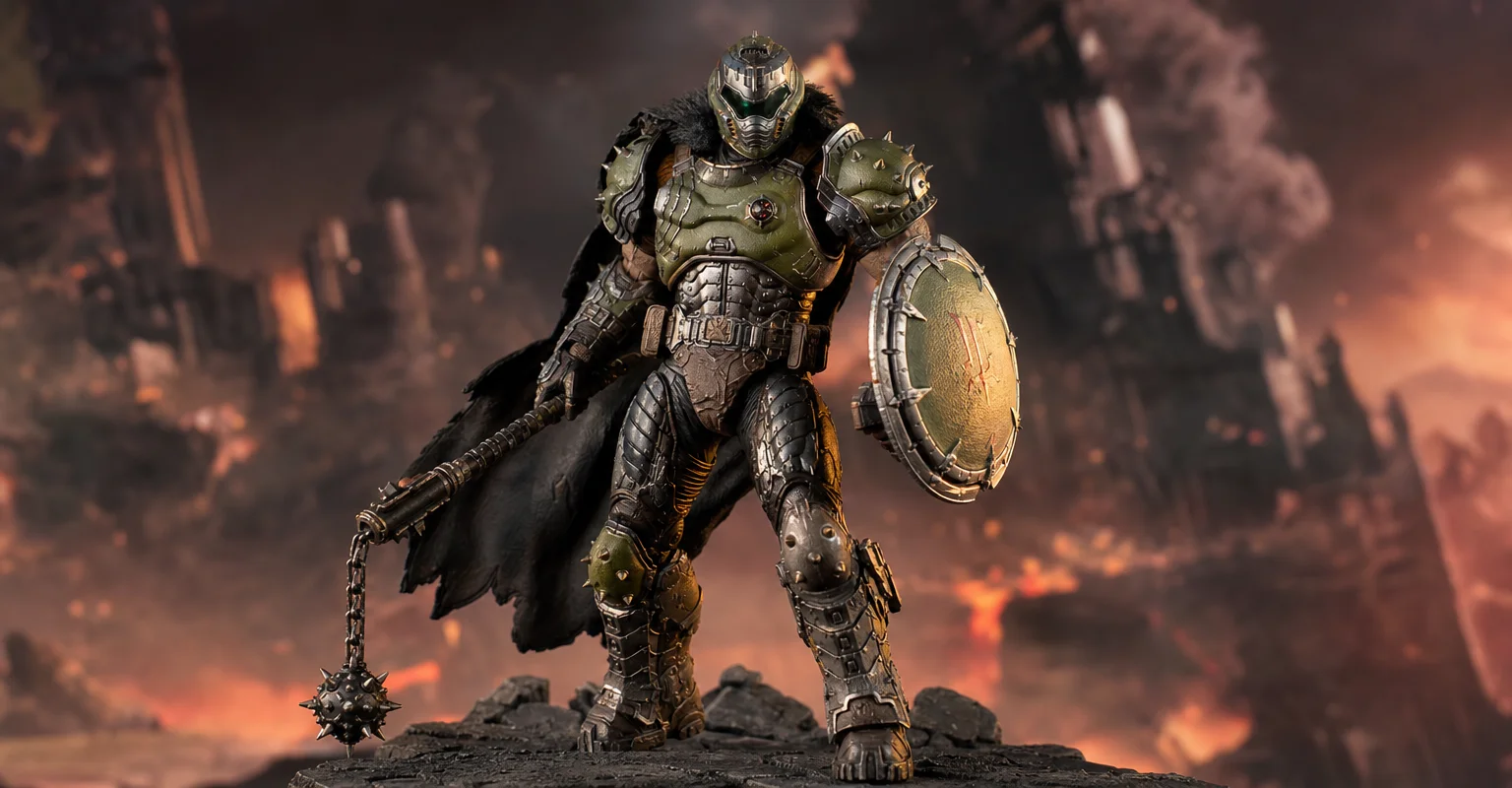
Pre-Order Alert: Good Smile Company Figma Doom: The Dark Ages – Doom Slayer DX Edition
The new Good Smile Company Figma Doom: The Dark Ages Doom Slayer DX Edition is more than a routine figure drop. It connects collector demand, franchise identity, and the wider appeal of Doom as one of gaming’s most durable icons.
Background Load Killers: The PC Checklist That Stops Random Heavy Feel
If the same game feels great one day and heavy the next, suspect background load. This checklist removes the common culprits: overlays, sync, scans, and scheduling spikes.