
Streaming Stutter: Storage, Decompression, and the Hitch Pattern
Streaming stutter happens when the game loads assets during play. You feel it as periodic hitches when entering new areas or when high-detail textures stream in. The fix is to reduce loading pressure and stabilize the system.
How It Looks
- Hitches align with new areas or fast movement.
- Texture pop-in and a brief freeze.
- More frequent hitches on slower storage or heavy background IO.
Fix Order
- Stop background downloads/updates while gaming.
- Lower the settings that increase streaming pressure (textures, view distance).
- Use a stable cap to reduce perceived hitch severity.
- If your storage is the bottleneck, an SSD upgrade is a real fix.
Rule: match the fix to the stutter type. Streaming stutter is not ‘VRR’ or ‘ping’.
Related Guides
Stutter TypesIdentify the type fast.
Background Load KillersReduce IO noise.
Frame Cap RecipesStability helps perception.
Frame PacingTiming is feel.
Related Articles
Wireless Controller Latency: Myths, Reality, and the One Baseline That Matters
Wireless isn’t automatically bad. Feel breaks when timing is unstable. Learn the real sources of controller delay and the baseline that makes it consistent.
Spatial Audio Stacking: The Fast Way to Stop Confused Direction
Direction breaks when you stack spatial processing layers (game + system + headset app). Use one layer at a time and your cues become readable again.
Fix Input Lag Fast (PC & Console): The No-Placebo Checklist
Stop chasing myths. This checklist targets the real causes of heavy feel: display processing, unstable pacing, render queue buffering, and background spikes.
Router Checklist for Gaming: The 10 Settings That Prevent Spikes
Most routers can game well if you remove the spike generators. Use this simple checklist: queue management, sane Wi-Fi, and stable load behavior.
Capture and Overlays: When Recording Tools Add Delay and Spikes
Recording and overlays can change timing and feel. Use this checklist to isolate capture overhead and keep frametimes stable while streaming or clipping.
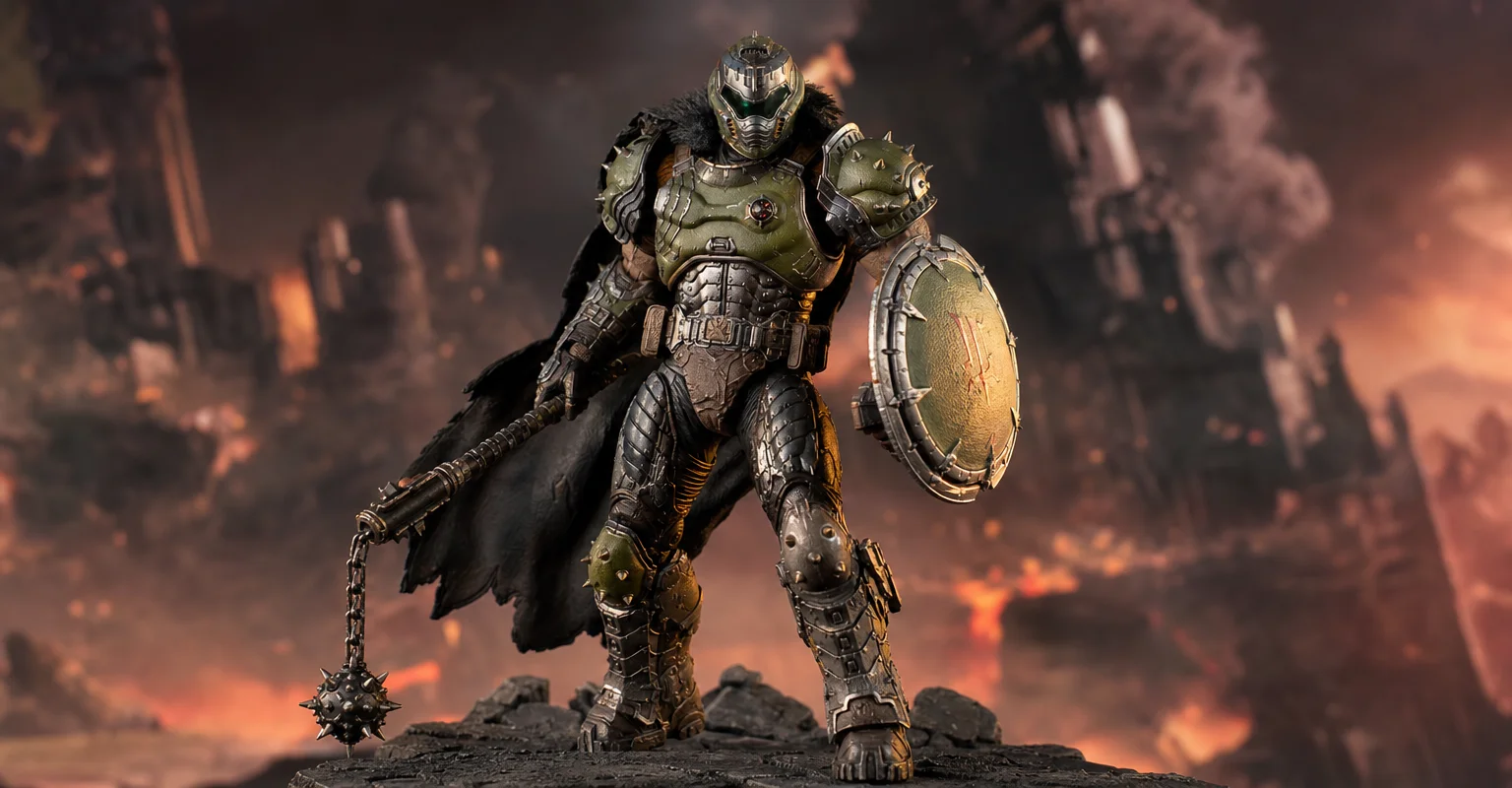
Pre-Order Alert: Good Smile Company Figma Doom: The Dark Ages – Doom Slayer DX Edition
The new Good Smile Company Figma Doom: The Dark Ages Doom Slayer DX Edition is more than a routine figure drop. It connects collector demand, franchise identity, and the wider appeal of Doom as one of gaming’s most durable icons.
Router Checklist for Gaming: The 10 Settings That Actually Matter
Most router tweaks are noise. Use this checklist to target stability under load: Wi-Fi environment, queue management, and sane defaults that reduce spikes.
Fix Input Lag Fast: The No-Placebo Checklist (Display, Timing, Background Load)
Stop guessing. This checklist isolates the real causes of input lag: display processing, unstable timing, and background load — in the right order.
Display Processing Traps: The Settings That Secretly Ruin Clarity and Feel
Many displays ship with processing that looks ‘nice’ in movies but breaks gaming: added latency, artifacts, and instability. Here’s the short list to disable and why.
Windows Audio Mixer Traps: Why PC Audio Feels Inconsistent in Games
PC audio feels random when routing changes silently. Learn the mixer traps (default device switching, enhancements, app routing) and how to lock one stable path.
Input Stability Week: The 7-Day Plan to Lock Consistent Feel
Your setup won’t feel consistent if you change five variables a day. Use this 7-day plan to lock a baseline, isolate issues, and keep control stable.
V-Sync and Tearing: When It Helps, When It Hurts, and the Stable Alternative
Tearing is visible, but the wrong fix can add heavy feel. Learn when V-Sync is worth it, when it hurts, and how VRR + caps reduce tearing with less tradeoff.