
VRR Range Basics: Why the Same Setup Feels Great in One Game and Bad in Another
VRR works inside a refresh range. If your game’s FPS spends a lot of time outside that range, VRR can’t stabilize timing and you get inconsistent feel. This is why one game feels perfect and another feels weird on the same setup.
What ‘Range’ Means (Simple)
- VRR can match refresh to FPS only within a supported window.
- Outside the window, behavior changes (stutter, tearing, or LFC behavior).
- Edge bouncing happens when FPS swings around the range boundary.
The Stable Way to Use VRR
- Pick a holdable frame cap that stays comfortably inside range.
- Fix stutter spikes before blaming VRR.
- If one title keeps bouncing edges: tune cap lower or disable VRR per-title.
Rule: VRR is only as good as your frame pacing inside the supported range.
Related Guides
VRR Setup GuideBaseline + common failures.
Frame Cap RecipesHoldable targets.
VRR Flicker DiagnosisEdge bouncing and stability.
Frame PacingTiming is feel.
Related Articles
HDR vs SDR Decision Matrix: When HDR Helps and When SDR Wins
HDR is not always better. Use this simple decision matrix to pick HDR or SDR per game based on readability, stability, and your display’s real behavior.
Comfort to Control: Why Ergonomics Improves Aim More Than You Think
Ergonomics is not optional. Fatigue changes grip, timing, and precision. Use a simple comfort baseline so your control stays consistent for hours.
Mic Monitoring (Side-Tone): The Comfort Setting That Prevents Shouting
Side-tone keeps your voice natural and prevents fatigue. Set it right so you don’t shout, over-tighten your jaw, or lose focus during long sessions.
Router Checklist for Gaming: The 10 Settings That Prevent Spikes
Most routers can game well if you remove the spike generators. Use this simple checklist: queue management, sane Wi-Fi, and stable load behavior.
Ethernet vs Wi-Fi for Gaming: When Wi-Fi Is Enough and When It Isn’t
Wi-Fi can be fine for casual play, but competitive stability still favors Ethernet. Use a simple decision checklist based on spikes, distance, and load.
NVIDIA Reflex Basics: When It Helps (And When It Does Nothing)
Reflex reduces render queue delay when the game is GPU-bound and stable. Learn the practical conditions where it helps and the traps that make it pointless.
Exclusive Mode Myths: When It Helps Audio (Rare) and When It Breaks Games
Exclusive mode can reduce OS mixing, but it often creates conflicts and instability. Use it only when it improves consistency, not because it sounds ‘pro’.
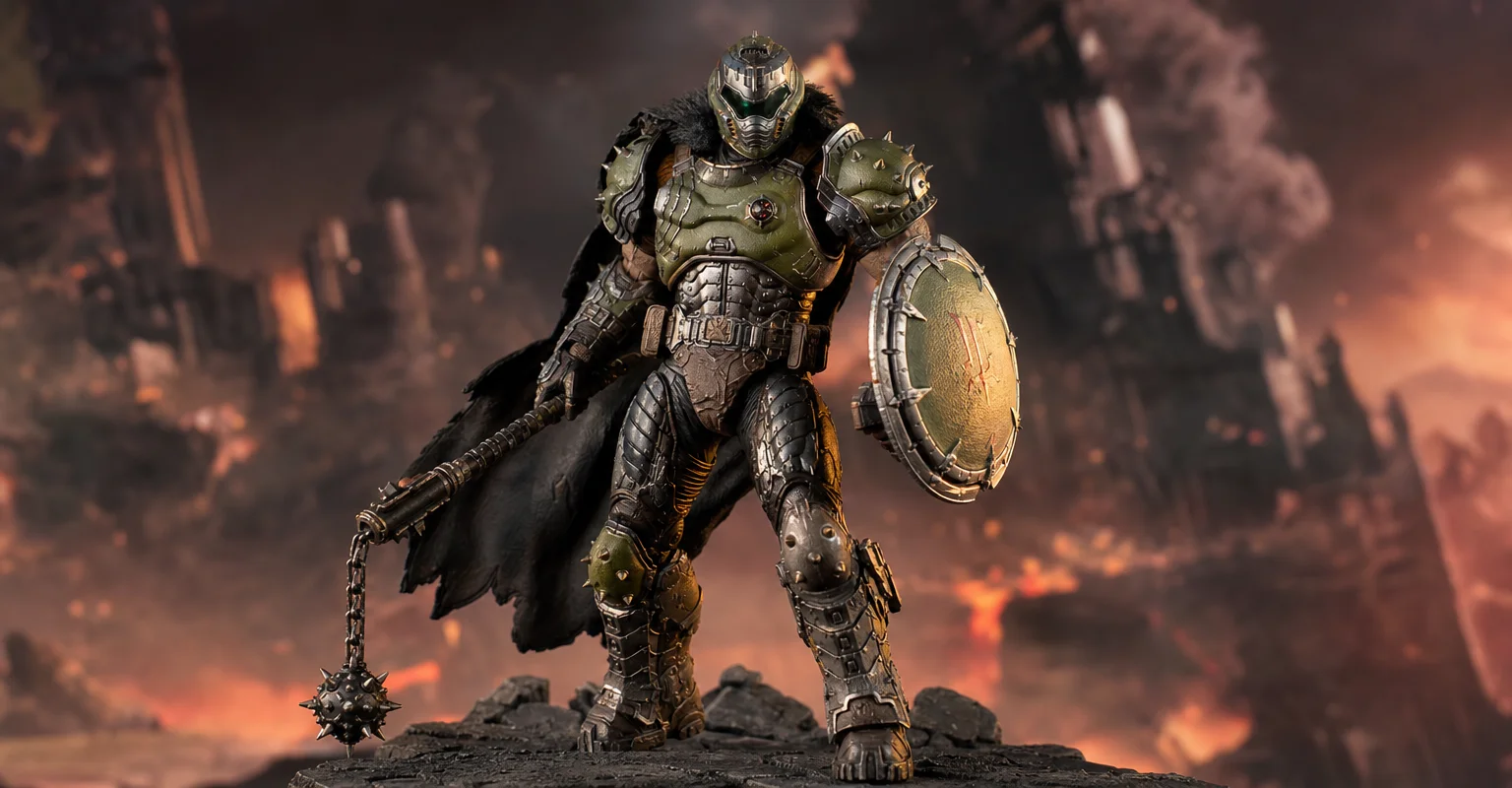
Pre-Order Alert: Good Smile Company Figma Doom: The Dark Ages – Doom Slayer DX Edition
The new Good Smile Company Figma Doom: The Dark Ages Doom Slayer DX Edition is more than a routine figure drop. It connects collector demand, franchise identity, and the wider appeal of Doom as one of gaming’s most durable icons.
Capture and Overlays: When Recording Tools Add Delay and Spikes
Recording and overlays can change timing and feel. Use this checklist to isolate capture overhead and keep frametimes stable while streaming or clipping.
V-Sync and Tearing: When It Helps, When It Hurts, and the Stable Alternative
Tearing is visible, but the wrong fix can add heavy feel. Learn when V-Sync is worth it, when it hurts, and how VRR + caps reduce tearing with less tradeoff.
Console 120Hz Traps: Why 120 Can Feel Worse Than 60
120Hz only feels better if the chain is correct. Wrong mode, wrong refresh handshake, unstable pacing, or broken VRR can make 120Hz feel worse than stable 60Hz.
Fix Input Lag Fast: The No-Placebo Checklist (Display, Timing, Background Load)
Stop guessing. This checklist isolates the real causes of input lag: display processing, unstable timing, and background load — in the right order.