
Capture and Overlays: When Recording Tools Add Delay and Spikes
Capture tools and overlays add work: encoding, hooks, and UI layers that can steal time and create spikes. If your game feels heavier when recording, it’s not your imagination — it’s scheduling and load.
Isolation Checklist
- Test the same scene with capture OFF vs ON.
- Disable extra overlays (chat, stats, filters) while testing.
- Use a stable frame cap to protect pacing.
- If spikes remain, lower capture settings or move capture to another device.
Rule: protect pacing first. Recording is optional. Stable feel is the goal.
Related Guides
Background Load Kill SwitchRemove hidden load.
Frame Cap RecipesStability tool.
Stutter TypesSpot CPU spikes.
Latency ChainOverlays are a link.
Related Articles
Audio EQ Minimalism: Small Changes That Improve Footstep Readability
EQ can help, but big curves often destroy distance and direction cues. Use minimal moves to improve footsteps without turning audio into mush.
Console Audio Modes: Stereo, Surround, and Why Auto Often Fails
Auto audio modes can change your cues mid-session. Learn how console audio modes interact with games and headsets, and how to lock a stable mode for readable direction.
NVIDIA Reflex Basics: When It Helps (And When It Does Nothing)
Reflex reduces render queue delay when the game is GPU-bound and stable. Learn the practical conditions where it helps and the traps that make it pointless.
Ethernet vs Wi-Fi for Gaming: The Honest Stability Tradeoff
Speed is not the main issue. Stability is. Ethernet usually wins because it reduces spikes. Use this guide to decide when Wi-Fi is enough and when it isn’t.
QoS Myths for Gaming: What Helps, What Hurts, and the Real Priority
QoS is not a magic ‘gaming’ toggle. Good queue management reduces latency under load. Bad QoS adds jitter or breaks fairness. Here’s the stable way to think about it.
Display Processing Traps: The Settings That Secretly Ruin Clarity and Feel
Many displays ship with processing that looks ‘nice’ in movies but breaks gaming: added latency, artifacts, and instability. Here’s the short list to disable and why.
Stutter Fixes That Actually Work: Stop Chasing Random Graphics Tweaks
Most stutter ‘fixes’ fail because they don’t match the stutter type. Use this practical order: triage, reduce spikes, stabilize pacing, then tune settings.
Network Test Under Load: The Only Result That Predicts Gaming Feel
A speed test is not enough. Gaming feel depends on latency under load. Use this simple test method to reveal spikes, jitter, and bufferbloat.
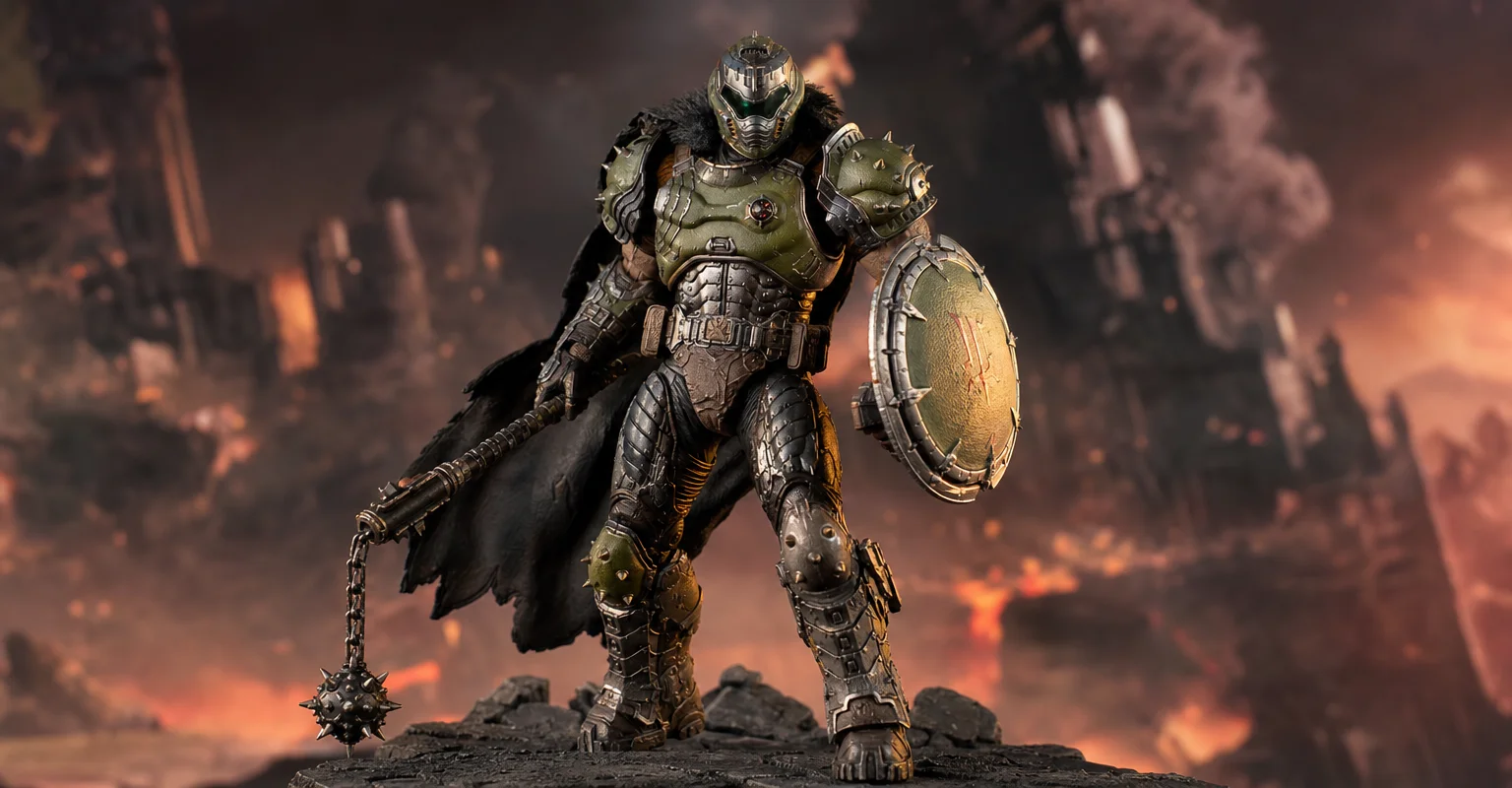
Pre-Order Alert: Good Smile Company Figma Doom: The Dark Ages – Doom Slayer DX Edition
The new Good Smile Company Figma Doom: The Dark Ages Doom Slayer DX Edition is more than a routine figure drop. It connects collector demand, franchise identity, and the wider appeal of Doom as one of gaming’s most durable icons.
V-Sync and Tearing: When It Helps, When It Hurts, and the Stable Alternative
Tearing is visible, but the wrong fix can add heavy feel. Learn when V-Sync is worth it, when it hurts, and how VRR + caps reduce tearing with less tradeoff.
End-to-End Feel Diagnosis: A Simple Flow That Finds the Real Cause
Stop guessing. Use this end-to-end flow to diagnose bad feel: display mode, timing, input queue, audio chain, and network load — in the right order.
Latency Chain Explained: Where Delay Actually Comes From (End to End)
Input lag is a chain, not one setting. Learn where delay comes from (device, render queue, display) and the fix order that actually improves feel.