
Motion Clarity: Why Fast Games Look Blurry (And What Actually Helps)
If you cannot read the screen while turning, the game feels harder than it should. Motion clarity is not a single spec. It is the interaction of timing, refresh behavior, and how motion is presented to your eyes.
Why Motion Looks Blurry
- Unstable frame timing creates uneven motion cues.
- Low refresh or low stable FPS reduces motion sampling.
- Display behavior and tuning can reduce readability in transitions.
- Camera motion and motion blur settings can hide detail.
What Actually Helps
- Stable frametimes and good frame pacing.
- A refresh rate you can feed consistently.
- VRR tuned after stability, not before.
- Balanced display tuning that avoids artifacts.
- Reducing camera motion blur if it hides information.
Practical Improvement Order
- Stabilize frametime and cap to a holdable target.
- Confirm the correct refresh rate is active.
- Enable VRR if supported and retest the same scene.
- Tune display settings for clarity without introducing artifacts.
- Adjust in-game motion blur only after timing is stable.
The Rule
Clarity comes from stability. If timing is chaotic, no display setting will save it.
Related Articles
Storage Streaming Stutter Fixes: When Assets Can’t Keep Up
Streaming stutter happens when new areas load: storage, decompression, or asset streaming limits. Use this fix order before you drop every graphics setting.
Spatial Audio Stacking: The Fast Way to Stop Confused Direction
Direction breaks when you stack spatial processing layers (game + system + headset app). Use one layer at a time and your cues become readable again.
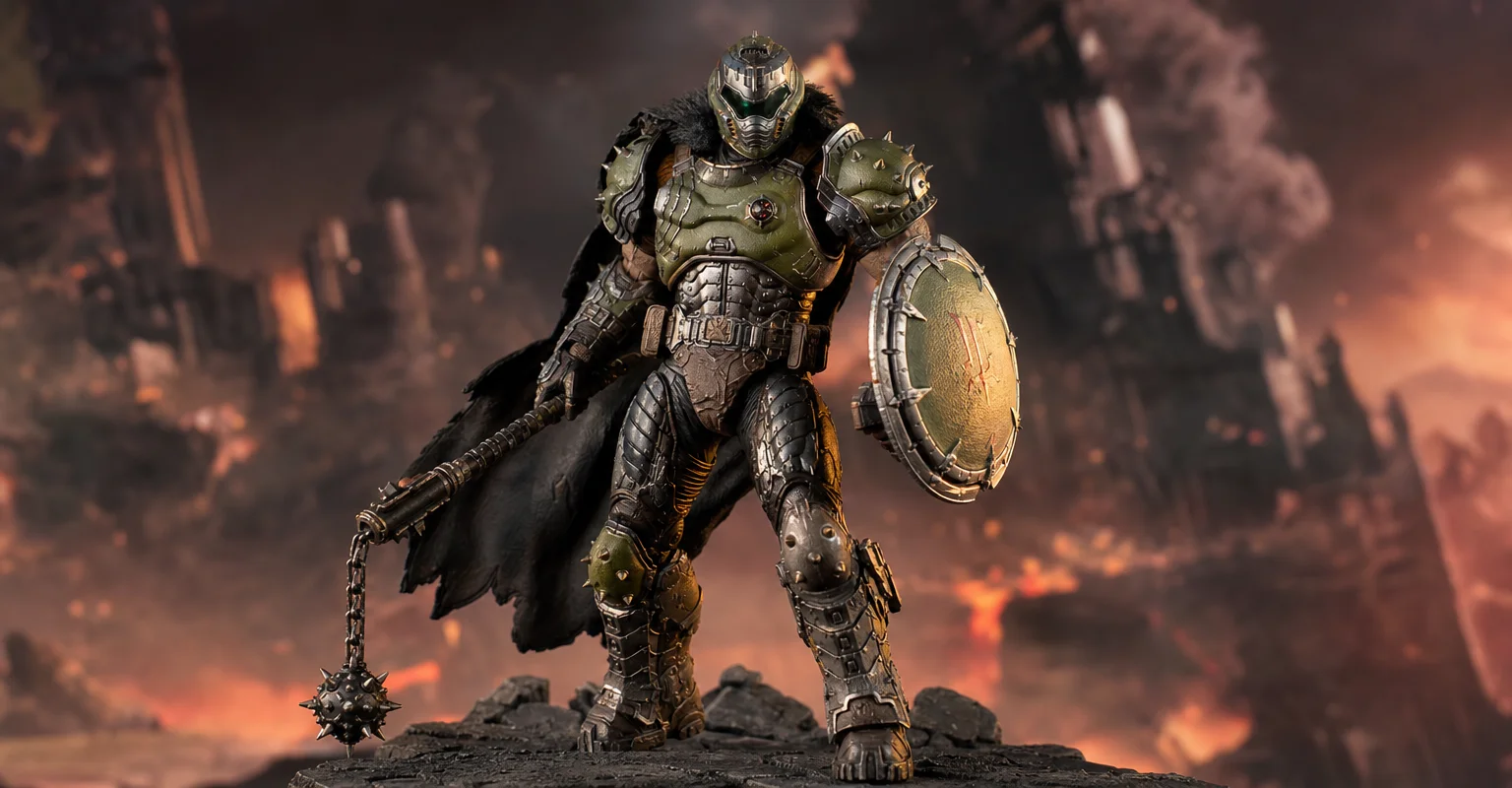
Pre-Order Alert: Good Smile Company Figma Doom: The Dark Ages – Doom Slayer DX Edition
The new Good Smile Company Figma Doom: The Dark Ages Doom Slayer DX Edition is more than a routine figure drop. It connects collector demand, franchise identity, and the wider appeal of Doom as one of gaming’s most durable icons.
Console 120Hz Traps: Wrong Port, Wrong Mode, and Hidden Limits
120Hz often fails because of simple mismatches: wrong HDMI port, wrong input mode, or disabled features. Use this quick checklist to get true 120Hz.
Comfort to Control: Why Ergonomics Improves Aim More Than You Think
Ergonomics is not optional. Fatigue changes grip, timing, and precision. Use a simple comfort baseline so your control stays consistent for hours.
Audio Chain Baseline: One Clean Path That Fixes Most Footstep Confusion
Footsteps become readable when your audio path is clean and consistent. This baseline removes stacked processing, wrong modes, and unstable levels that destroy direction cues.
TV Local Dimming Tuning for Games: Keep Detail Without Flicker
Local dimming can improve contrast or ruin stability with pumping and crush. Use this practical tuning order to keep detail and readable highlights without flicker.
HDR vs SDR Decision Matrix: When HDR Helps and When SDR Wins
HDR is not always better. Use this simple decision matrix to pick HDR or SDR per game based on readability, stability, and your display’s real behavior.
Network Test Under Load: The Only Result That Predicts Gaming Feel
A speed test is not enough. Gaming feel depends on latency under load. Use this simple test method to reveal spikes, jitter, and bufferbloat.
Mic Monitoring (Side-Tone): The Comfort Setting That Prevents Shouting
Side-tone keeps your voice natural and prevents fatigue. Set it right so you don’t shout, over-tighten your jaw, or lose focus during long sessions.
Audio Chain for Gaming: One Clean Path from Game to Ears
Audio positioning improves when the chain is clean and stable. Build one path: one device, one mode, minimal processing, consistent levels.
Mouse Acceleration vs Raw Input: How to Choose Without Breaking Aim
Acceleration isn’t evil — inconsistency is. Learn what raw input changes, when acceleration makes sense, and how to choose a stable setup without resetting your muscle memory daily.