
Wi-Fi 6 / 6E Basics for Gaming: What Actually Changes Feel
Wi-Fi feel is stability: spikes and interference. Wi-Fi 6/6E can help capacity and congestion, but it won’t fix poor placement, obstacles, or bufferbloat under load.
What 6/6E Can Help With
- More efficient handling of many devices.
- Better capacity in busy households.
- 6GHz (6E) can reduce interference if your device supports it.
What It Does Not Fix
- Bad router placement and obstacles.
- Background uploads causing bufferbloat spikes.
- Wrong channels and noisy environments.
Rule: upgrade only after you measure spikes under real load. Otherwise you buy features and keep the same problem.
Related Guides
Wi-Fi for GamingStability rules first.
Router ChecklistThe few settings that matter.
Network TestingMeasure spikes correctly.
Queue ManagementLatency under load fix order.
Related Articles
HDR vs SDR Decision Matrix: When HDR Helps and When SDR Wins
HDR is not always better. Use this simple decision matrix to pick HDR or SDR per game based on readability, stability, and your display’s real behavior.
Console 120Hz Traps: Wrong Port, Wrong Mode, and Hidden Limits
120Hz often fails because of simple mismatches: wrong HDMI port, wrong input mode, or disabled features. Use this quick checklist to get true 120Hz.
Console 120Hz Traps: Why 120 Can Feel Worse Than 60
120Hz only feels better if the chain is correct. Wrong mode, wrong refresh handshake, unstable pacing, or broken VRR can make 120Hz feel worse than stable 60Hz.
Audio Chain for Gaming: One Clean Layer at a Time (No Stacking)
If direction feels wrong, you’re probably stacking processing. This guide shows a clean audio chain and the one-layer rule that restores readable footsteps.
Router Checklist for Gaming: The 10 Settings That Prevent Spikes
Most routers can game well if you remove the spike generators. Use this simple checklist: queue management, sane Wi-Fi, and stable load behavior.
Capture and Overlays: When Recording Tools Add Delay and Spikes
Recording and overlays can change timing and feel. Use this checklist to isolate capture overhead and keep frametimes stable while streaming or clipping.
Borderless vs Exclusive Fullscreen: When It Matters for Feel and Stability
Most of the time, it doesn’t matter. But in some setups, window mode affects timing, overlays, and stability. Here’s when to care and how to decide.
Ethernet vs Wi-Fi for Gaming: The Honest Stability Tradeoff
Speed is not the main issue. Stability is. Ethernet usually wins because it reduces spikes. Use this guide to decide when Wi-Fi is enough and when it isn’t.
End-to-End Feel Diagnosis: A Simple Flow That Finds the Real Cause
Stop guessing. Use this end-to-end flow to diagnose bad feel: display mode, timing, input queue, audio chain, and network load — in the right order.
V-Sync and Tearing: When It Helps, When It Hurts, and the Stable Alternative
Tearing is visible, but the wrong fix can add heavy feel. Learn when V-Sync is worth it, when it hurts, and how VRR + caps reduce tearing with less tradeoff.
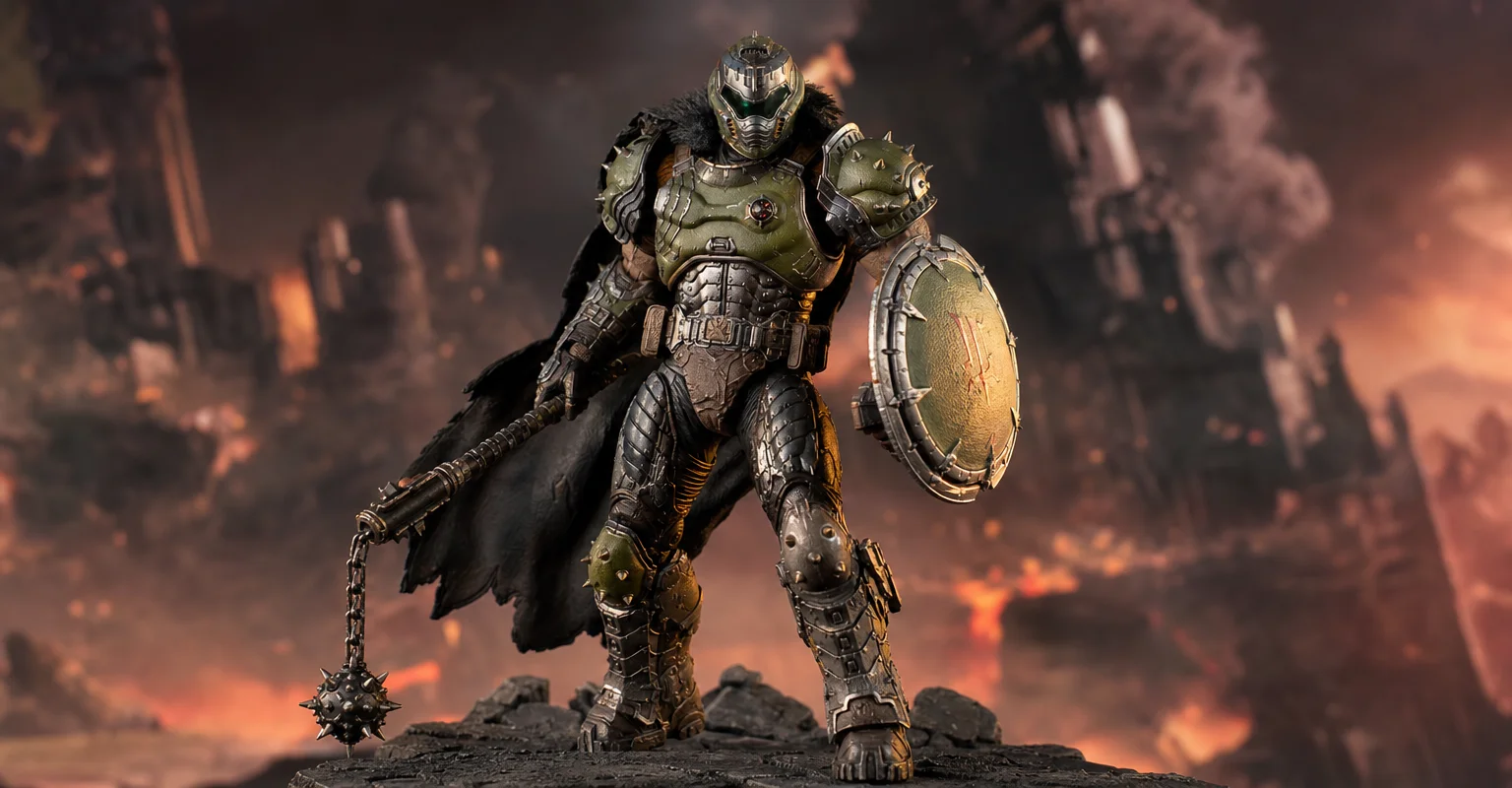
Pre-Order Alert: Good Smile Company Figma Doom: The Dark Ages – Doom Slayer DX Edition
The new Good Smile Company Figma Doom: The Dark Ages Doom Slayer DX Edition is more than a routine figure drop. It connects collector demand, franchise identity, and the wider appeal of Doom as one of gaming’s most durable icons.
Input Lag Chain Deep: Where Delay Actually Builds Up (Click-to-Photon)
Input lag is a chain: device, OS, game loop, render queue, display. Learn where delay accumulates and how to reduce it by stabilizing timing and removing hidden processing.