
VRR Range Cheat Sheet: How to Stay Inside the Smooth Zone
VRR is smooth when your FPS lives inside the display’s VRR range and frametimes are stable. If you constantly jump above or below the range, VRR becomes inconsistent.
The Simple Rules
- Find your realistic FPS floor in real gameplay.
- Set a cap that keeps you inside the VRR range most of the time.
- Fix stutter spikes before tuning VRR comfort settings.
- If flicker appears, increase stability and retest.
Common Mistake
People run uncapped, bounce between 80–160 FPS, and blame VRR. VRR rewards stable delivery, not peak numbers.
Rule: caps are consistency tools. They keep VRR in the smooth zone.
Related Guides
VRR Setup GuideBaseline VRR setup and failures.
VRR Flicker and Frame CapsStable fixes without guesswork.
Frame PacingTiming is what you feel.
GearDisplays and hardware basics.
Related Articles
Stutter Fixes That Actually Work: Stop Chasing Random Graphics Tweaks
Most stutter ‘fixes’ fail because they don’t match the stutter type. Use this practical order: triage, reduce spikes, stabilize pacing, then tune settings.
Router Placement for Gaming: Distance and Obstacles That Create Spikes
Before you buy a new router, fix the environment. Placement, obstacles, and interference create spikes that feel like lag and stutter.
VRR Flicker Diagnosis: Why It Happens and the Stable Fix Order
VRR flicker is usually a stability problem, not a broken display. Learn why it happens (range edges, luminance changes) and the fix order that actually works.
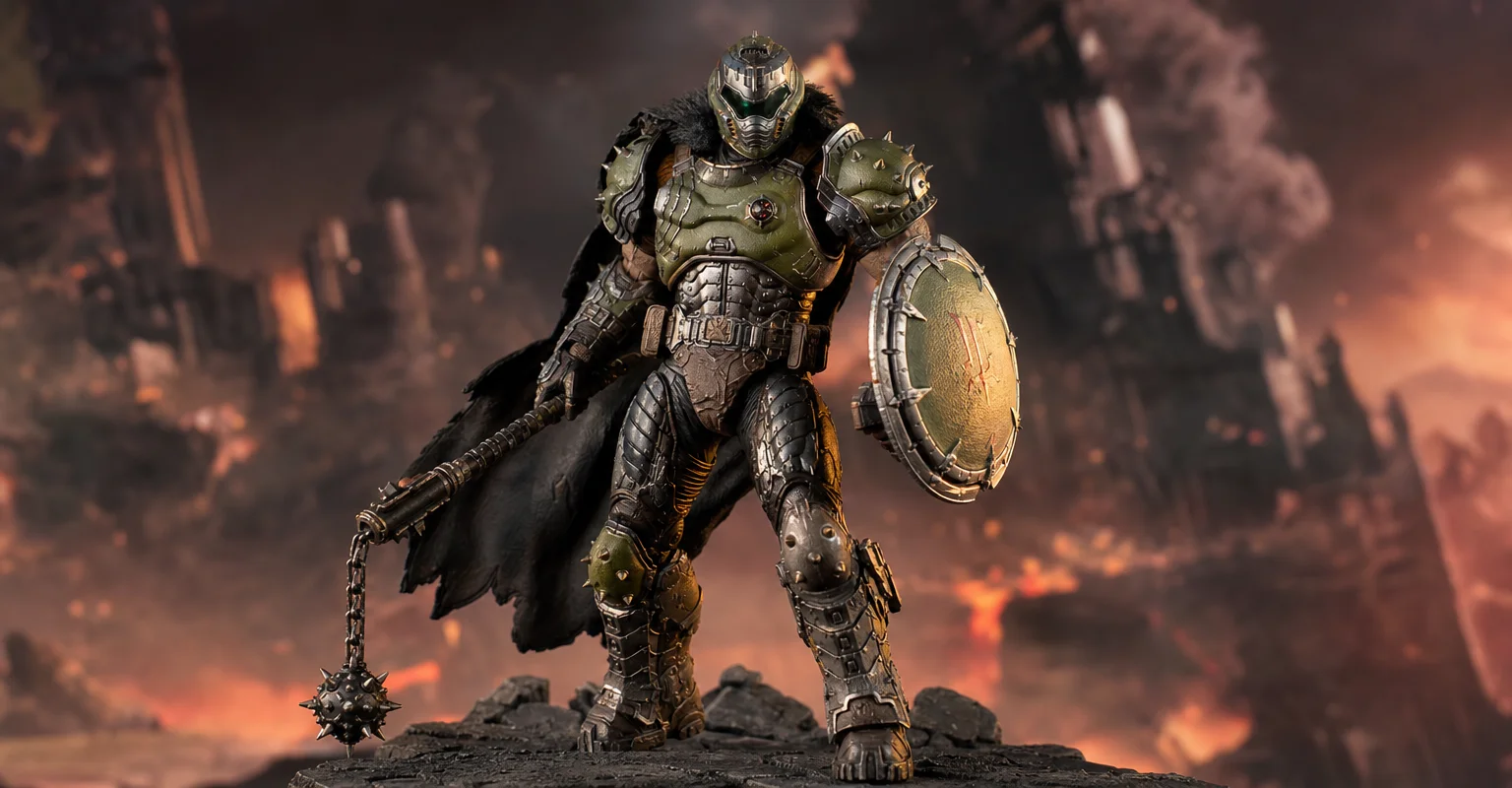
Pre-Order Alert: Good Smile Company Figma Doom: The Dark Ages – Doom Slayer DX Edition
The new Good Smile Company Figma Doom: The Dark Ages Doom Slayer DX Edition is more than a routine figure drop. It connects collector demand, franchise identity, and the wider appeal of Doom as one of gaming’s most durable icons.
Shader Stutter: Why First Runs Hitch and How to Reduce It
Shader stutter happens when new effects compile in real time. Learn how to identify it fast and the practical ways to reduce hitches without placebo tweaks.
V-Sync and Tearing: When It Helps, When It Hurts, and the Stable Alternative
Tearing is visible, but the wrong fix can add heavy feel. Learn when V-Sync is worth it, when it hurts, and how VRR + caps reduce tearing with less tradeoff.
TV Local Dimming Tuning for Games: Keep Detail Without Flicker
Local dimming can improve contrast or ruin stability with pumping and crush. Use this practical tuning order to keep detail and readable highlights without flicker.
Audio EQ Minimalism: Small Changes That Improve Footstep Readability
EQ can help, but big curves often destroy distance and direction cues. Use minimal moves to improve footsteps without turning audio into mush.
Wi-Fi Channel Picks for Gaming: Simple Rules for 2.4GHz, 5GHz, and 6GHz
Bad channel choice causes spikes and packet loss. Use these simple rules to pick a cleaner band and reduce interference before buying hardware.
Audio Chain for Gaming: One Clean Layer at a Time (No Stacking)
If direction feels wrong, you’re probably stacking processing. This guide shows a clean audio chain and the one-layer rule that restores readable footsteps.
Console Audio Modes: Stereo, Surround, and Why Auto Often Fails
Auto audio modes can change your cues mid-session. Learn how console audio modes interact with games and headsets, and how to lock a stable mode for readable direction.
Windows Audio Mixer Traps: Why PC Audio Feels Inconsistent in Games
PC audio feels random when routing changes silently. Learn the mixer traps (default device switching, enhancements, app routing) and how to lock one stable path.