
Display Modes Glossary: Game Mode, PC Mode, Filmmaker Mode (What They Really Change)
Display modes change how the display processes your signal. For gaming, the key variables are latency, clarity, and signal handling. This glossary keeps it simple and practical.
Mode Basics (Practical)
- Game Mode: reduces processing latency and often disables smoothing.
- PC Mode: often improves chroma/text clarity and can change scaling.
- Filmmaker/Cinema modes: prioritize image processing, often higher latency.
Which to Use
- Competitive gaming: Game Mode (always).
- PC desktop use on TV: consider PC Mode for text clarity.
- Movies: Filmmaker/Cinema, not for gaming.
Rule: if the display has Game Mode, use it for gaming. Everything else is secondary.
Related Guides
Game Mode ExplainedWhy it prevents hidden latency.
Motion ClarityClarity without latency tricks.
Console vs PC Display SetupBaseline checks across platforms.
GearDisplays and settings that shape feel.
Related Articles
VRR Flicker Diagnosis: Why It Happens and the Stable Fix Order
VRR flicker is usually a stability problem, not a broken display. Learn why it happens (range edges, luminance changes) and the fix order that actually works.
Ethernet Facts for Gaming: Cables, Ports, and the Myths That Waste Money
Ethernet improves stability, but you don’t need expensive ‘gaming’ cables. Learn the practical cable/port facts that matter for low-latency consistency.
Storage Streaming Stutter Fixes: When Assets Can’t Keep Up
Streaming stutter happens when new areas load: storage, decompression, or asset streaming limits. Use this fix order before you drop every graphics setting.
HDR vs SDR Decision Matrix: When HDR Helps and When SDR Wins
HDR is not always better. Use this simple decision matrix to pick HDR or SDR per game based on readability, stability, and your display’s real behavior.
Wi-Fi Channel Picks for Gaming: Simple Rules for 2.4GHz, 5GHz, and 6GHz
Bad channel choice causes spikes and packet loss. Use these simple rules to pick a cleaner band and reduce interference before buying hardware.
QoS Myths for Gaming: What Helps, What Hurts, and the Real Priority
QoS is not a magic ‘gaming’ toggle. Good queue management reduces latency under load. Bad QoS adds jitter or breaks fairness. Here’s the stable way to think about it.
Background Load Killers: The PC Checklist That Stops Random Heavy Feel
If the same game feels great one day and heavy the next, suspect background load. This checklist removes the common culprits: overlays, sync, scans, and scheduling spikes.
Latency Chain Explained: Where Delay Actually Comes From (End to End)
Input lag is a chain, not one setting. Learn where delay comes from (device, render queue, display) and the fix order that actually improves feel.
Fix Input Lag Fast: The No-Placebo Checklist (Display, Timing, Background Load)
Stop guessing. This checklist isolates the real causes of input lag: display processing, unstable timing, and background load — in the right order.
Borderless vs Exclusive Fullscreen: When It Matters for Feel and Stability
Most of the time, it doesn’t matter. But in some setups, window mode affects timing, overlays, and stability. Here’s when to care and how to decide.
Display Processing Traps: The Settings That Secretly Ruin Clarity and Feel
Many displays ship with processing that looks ‘nice’ in movies but breaks gaming: added latency, artifacts, and instability. Here’s the short list to disable and why.
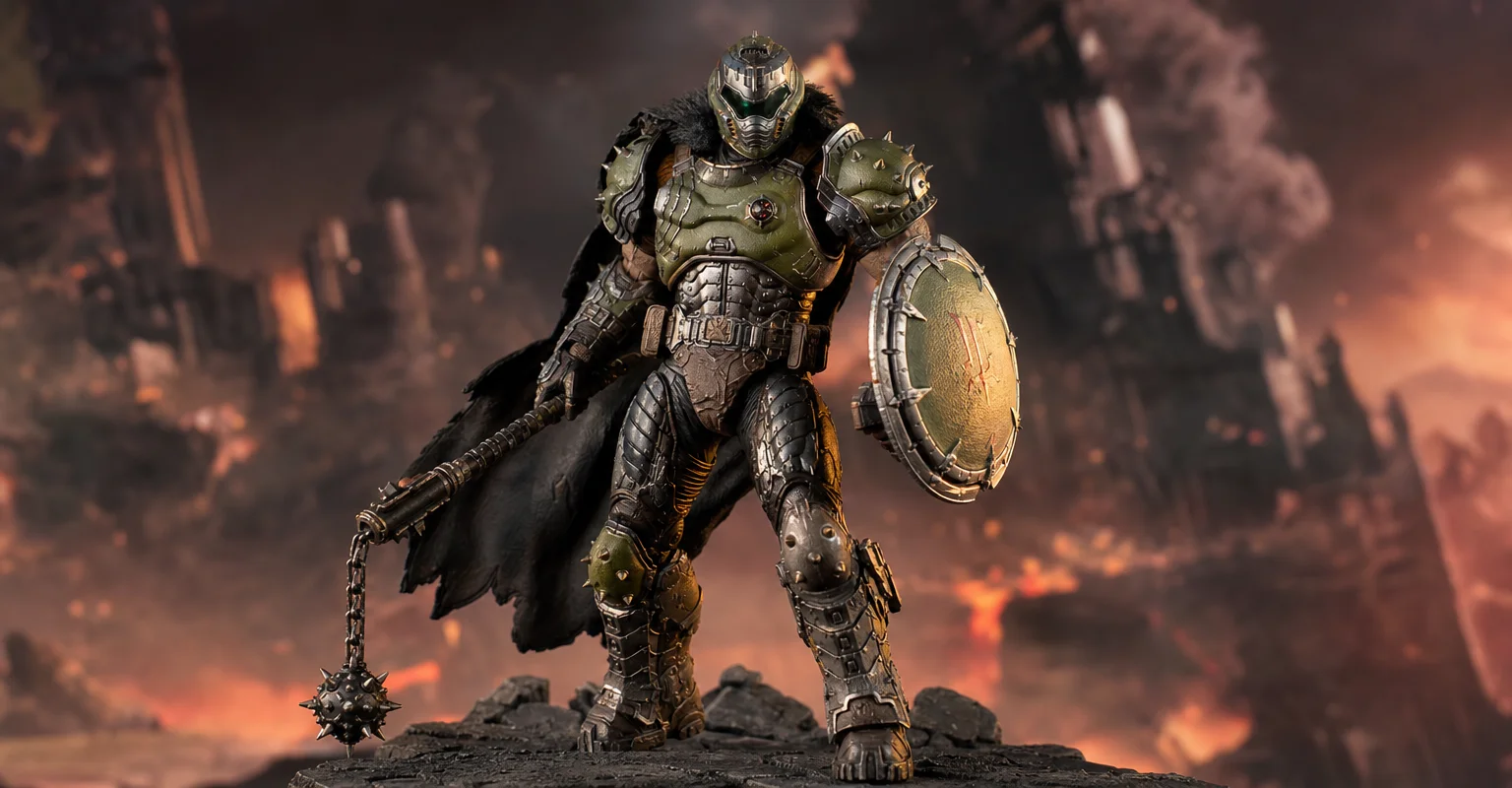
Pre-Order Alert: Good Smile Company Figma Doom: The Dark Ages – Doom Slayer DX Edition
The new Good Smile Company Figma Doom: The Dark Ages Doom Slayer DX Edition is more than a routine figure drop. It connects collector demand, franchise identity, and the wider appeal of Doom as one of gaming’s most durable icons.