
Game Mode on TVs and Monitors: The One Setting That Changes Everything
Many displays add processing that looks nice for movies but adds delay for games. Game mode reduces that processing. If controls feel late, game mode is the first thing to confirm.
What Game Mode Typically Does
- Disables extra image processing that adds latency.
- Reduces motion smoothing and heavy filtering.
- Stabilizes the pipeline for faster response.
Common Signs Game Mode Is Off
- Controls feel delayed or floaty.
- Fast camera turns feel smeared or artificial.
- HDR or motion settings look cinematic but feel slow.
Practical Verification
- Enable game mode on the exact input you use.
- Disable motion smoothing and extra processing while testing.
- Compare a fast camera turn with and without game mode.
- Keep settings stable for a full session to judge feel.
The Rule
If you change only one display setting for gaming, make it game mode. It is the biggest latency lever on most TVs.
Related Guides
ExperienceOutcomes you can feel in play.
PlaybooksStep by step fixes for better feel.
GearHardware that shapes feel.
Console vs PC Display Setup: The Small Settings That Change FeelSame game, different feel. Fix defaults.
Related Articles
Audio Chain for Gaming: One Clean Layer at a Time (No Stacking)
If direction feels wrong, you’re probably stacking processing. This guide shows a clean audio chain and the one-layer rule that restores readable footsteps.
Display Processing Traps: The Settings That Secretly Ruin Clarity and Feel
Many displays ship with processing that looks ‘nice’ in movies but breaks gaming: added latency, artifacts, and instability. Here’s the short list to disable and why.
HDMI Black Level and RGB Range: The Quick Fix for Washed Out or Crushed Images
Washed out blacks or crushed shadow detail is often a range mismatch, not a bad screen. Use this quick check to fix readability in minutes.
Latency Chain Explained: Where Delay Actually Comes From (End to End)
Input lag is a chain, not one setting. Learn where delay comes from (device, render queue, display) and the fix order that actually improves feel.
HDR Calibration Pitfalls: Why HDR Looks Dim or Washed Out
HDR looks bad when the baseline is wrong: mode mismatch, skipped calibration, dynamic processing, or wrong black/white levels. Fix the pitfalls in order.

Pre-Order Alert: Good Smile Company Figma Doom: The Dark Ages – Doom Slayer DX Edition
The new Good Smile Company Figma Doom: The Dark Ages Doom Slayer DX Edition is more than a routine figure drop. It connects collector demand, franchise identity, and the wider appeal of Doom as one of gaming’s most durable icons.
Input Stability Week: The 7-Day Plan to Lock Consistent Feel
Your setup won’t feel consistent if you change five variables a day. Use this 7-day plan to lock a baseline, isolate issues, and keep control stable.
V-Sync and Tearing: When It Helps, When It Hurts, and the Stable Alternative
Tearing is visible, but the wrong fix can add heavy feel. Learn when V-Sync is worth it, when it hurts, and how VRR + caps reduce tearing with less tradeoff.
Router Checklist for Gaming: The 10 Settings That Prevent Spikes
Most routers can game well if you remove the spike generators. Use this simple checklist: queue management, sane Wi-Fi, and stable load behavior.
Wireless Controller Latency: Myths, Reality, and the One Baseline That Matters
Wireless isn’t automatically bad. Feel breaks when timing is unstable. Learn the real sources of controller delay and the baseline that makes it consistent.
Audio EQ Minimalism: Small Changes That Improve Footstep Readability
EQ can help, but big curves often destroy distance and direction cues. Use minimal moves to improve footsteps without turning audio into mush.
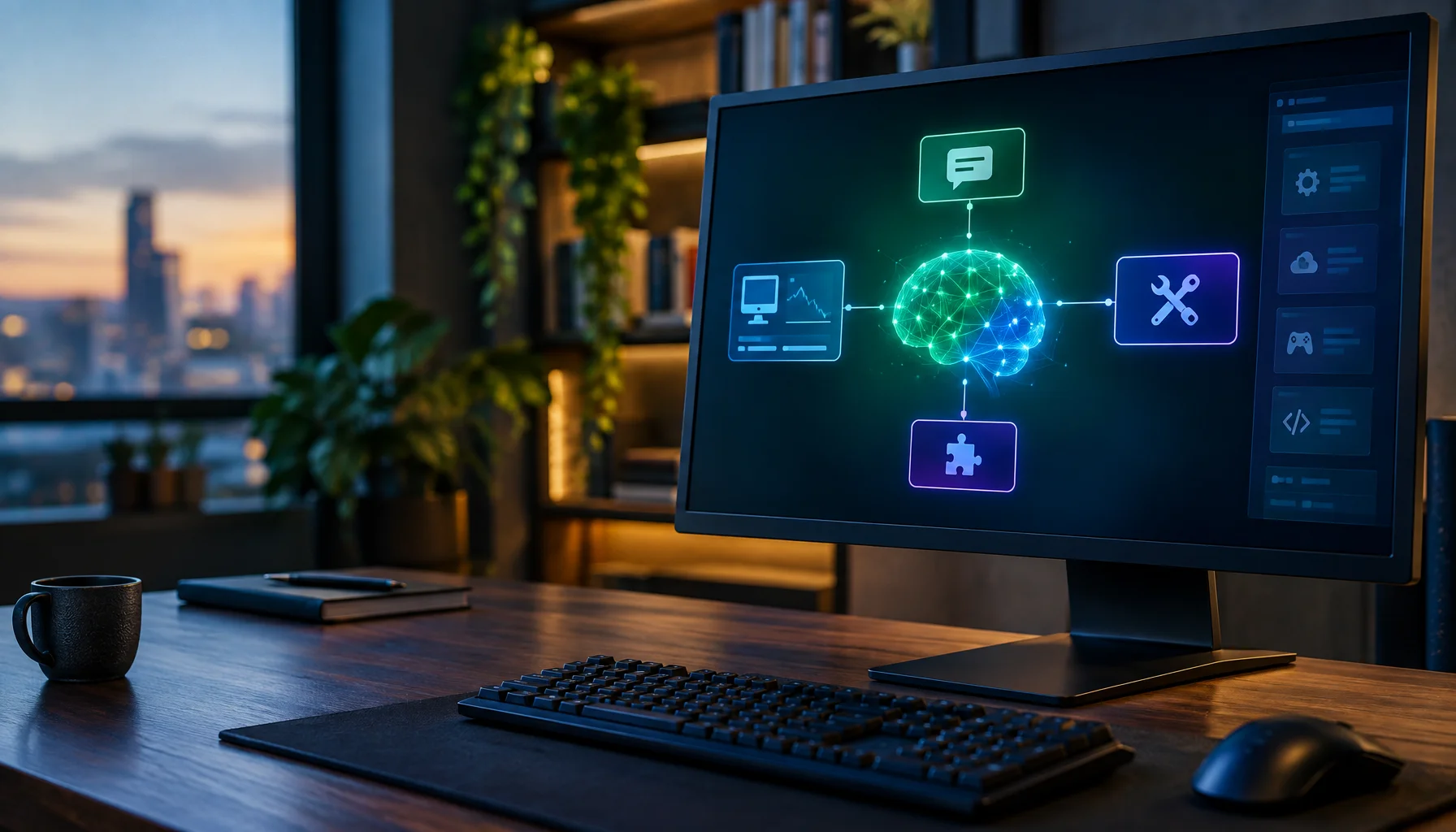
NVIDIA G-Assist Is Not Just a Chatbot: How Its Local SLM, Tools, Plug-ins and MCP Actually Work
NVIDIA Project G-Assist looks like a chatbot, but its real architecture is closer to a local AI agent. A small language model interprets your request, system state provides current PC information, tools perform real actions, and plug-ins extend what the assistant is allowed to control.