
Packet Loss for Gaming: The Fast Triage and Fix Order
Packet loss is one of the most misunderstood causes of ‘lag’. It often shows up as rubberbanding, delayed hit registration, and inconsistent feel even when ping looks fine. The key is to locate where loss begins.
Loss Symptoms (Common)
- Rubberbanding or teleporting.
- Shots that feel ‘late’ or don’t register consistently.
- Voice chat cuts while ping still looks normal.
Fix Order (Do This)
- Go Ethernet for testing (remove Wi-Fi variables).
- Check physical path: cable, port, adapter stability.
- Test under load to rule out bufferbloat masking as loss.
- If loss persists wired and idle, suspect ISP/routing and collect evidence.
Rule: prove where loss begins before you buy gear. Most fixes are physical-path or Wi-Fi environment, not ‘faster internet’.
Related Guides
Ethernet Cabling MythsStability beats cable labels.
Wi-Fi for GamingSpikes and interference rules.
Queue ManagementLatency under load can mimic ‘lag’.
Router Checklist v2Baseline router stability checks.
Related Articles
Router Placement for Gaming: Distance and Obstacles That Create Spikes
Before you buy a new router, fix the environment. Placement, obstacles, and interference create spikes that feel like lag and stutter.
Borderless vs Exclusive Fullscreen: When It Matters for Feel and Stability
Most of the time, it doesn’t matter. But in some setups, window mode affects timing, overlays, and stability. Here’s when to care and how to decide.
Router Checklist for Gaming: Settings That Actually Change Stability
Most router ‘gaming’ features are noise. This checklist focuses on what actually changes feel: queue management, stable Wi-Fi, and avoiding load spikes.
Overdrive Tuning: The Clean Way to Reduce Blur Without Ghosting
Overdrive can improve clarity or add ugly halos. Use this simple method to pick the clean middle setting that reduces blur without ghosting artifacts.
Background Load Killers: The PC Checklist That Stops Random Heavy Feel
If the same game feels great one day and heavy the next, suspect background load. This checklist removes the common culprits: overlays, sync, scans, and scheduling spikes.
Mic Monitoring (Side-Tone): The Comfort Setting That Prevents Shouting
Side-tone keeps your voice natural and prevents fatigue. Set it right so you don’t shout, over-tighten your jaw, or lose focus during long sessions.
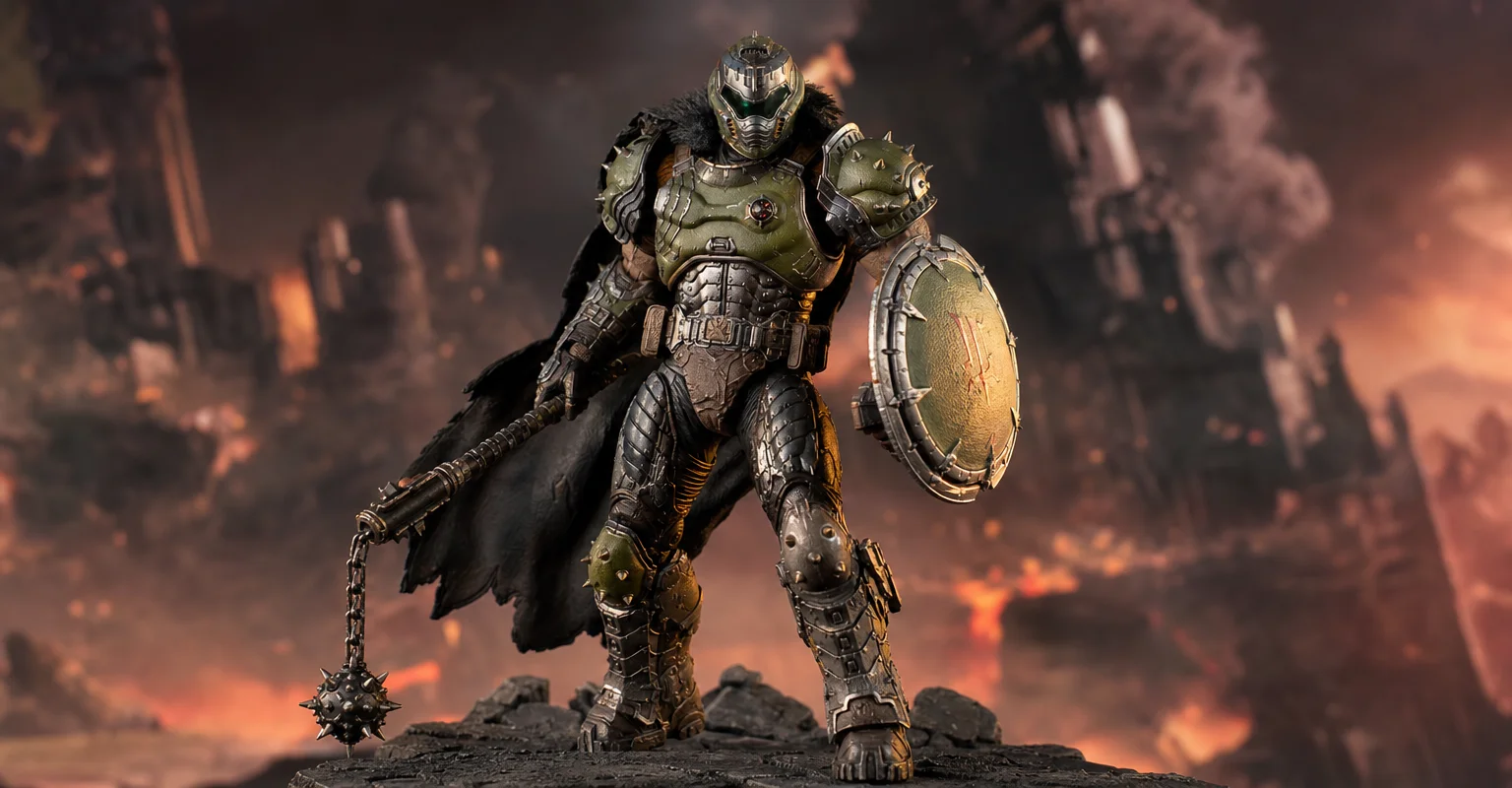
Pre-Order Alert: Good Smile Company Figma Doom: The Dark Ages – Doom Slayer DX Edition
The new Good Smile Company Figma Doom: The Dark Ages Doom Slayer DX Edition is more than a routine figure drop. It connects collector demand, franchise identity, and the wider appeal of Doom as one of gaming’s most durable icons.
Capture and Overlays: When Recording Tools Add Delay and Spikes
Recording and overlays can change timing and feel. Use this checklist to isolate capture overhead and keep frametimes stable while streaming or clipping.
Console Audio Modes: Stereo, Surround, and Why Auto Often Fails
Auto audio modes can change your cues mid-session. Learn how console audio modes interact with games and headsets, and how to lock a stable mode for readable direction.
V-Sync and Tearing: When It Helps, When It Hurts, and the Stable Alternative
Tearing is visible, but the wrong fix can add heavy feel. Learn when V-Sync is worth it, when it hurts, and how VRR + caps reduce tearing with less tradeoff.
Network Test Under Load: The Only Result That Predicts Gaming Feel
A speed test is not enough. Gaming feel depends on latency under load. Use this simple test method to reveal spikes, jitter, and bufferbloat.
HDR Calibration Pitfalls: Why HDR Looks Dim or Washed Out
HDR looks bad when the baseline is wrong: mode mismatch, skipped calibration, dynamic processing, or wrong black/white levels. Fix the pitfalls in order.