
HDMI Handshake Problems: Fix Black Screens, Wrong Refresh, and No VRR
If you get black screens, random signal drops, wrong refresh rate, or missing VRR/HDR, the issue is often HDMI handshake: port capabilities, cable quality, or device mode confusion.
Fast Fix Checklist
- Use the correct HDMI port (some ports support 120Hz/VRR, others do not).
- Enable the display’s enhanced HDMI mode (if it exists).
- Test with a known-good cable and simplify the chain (no splitters).
- Power-cycle both devices (true restart) to reset negotiation.
- Re-check refresh rate and VRR status after changes.
Common Symptoms Mapped
- Wrong refresh rate: port mode or device output mismatch.
- No VRR option: wrong input mode or unsupported port.
- Random black flickers: cable/chain instability.
Rule: simplify first. One cable, one port, one device. Add complexity only after the signal is stable.
Related Guides
Console vs PC Display SetupBaseline checks that prevent bad feel.
VRR Setup GuideHow to enable VRR correctly.
Game Mode ExplainedCorrect input mode matters.
GearDisplays and ports that shape feel.
Related Articles
NVIDIA Reflex Basics: When It Helps (And When It Does Nothing)
Reflex reduces render queue delay when the game is GPU-bound and stable. Learn the practical conditions where it helps and the traps that make it pointless.
Ethernet Facts for Gaming: Cables, Ports, and the Myths That Waste Money
Ethernet improves stability, but you don’t need expensive ‘gaming’ cables. Learn the practical cable/port facts that matter for low-latency consistency.
Router Checklist for Gaming: The Settings That Actually Matter
Most router tweaks don’t help. These settings do: queue management under load, stable Wi-Fi behavior, and avoiding features that add latency or instability.
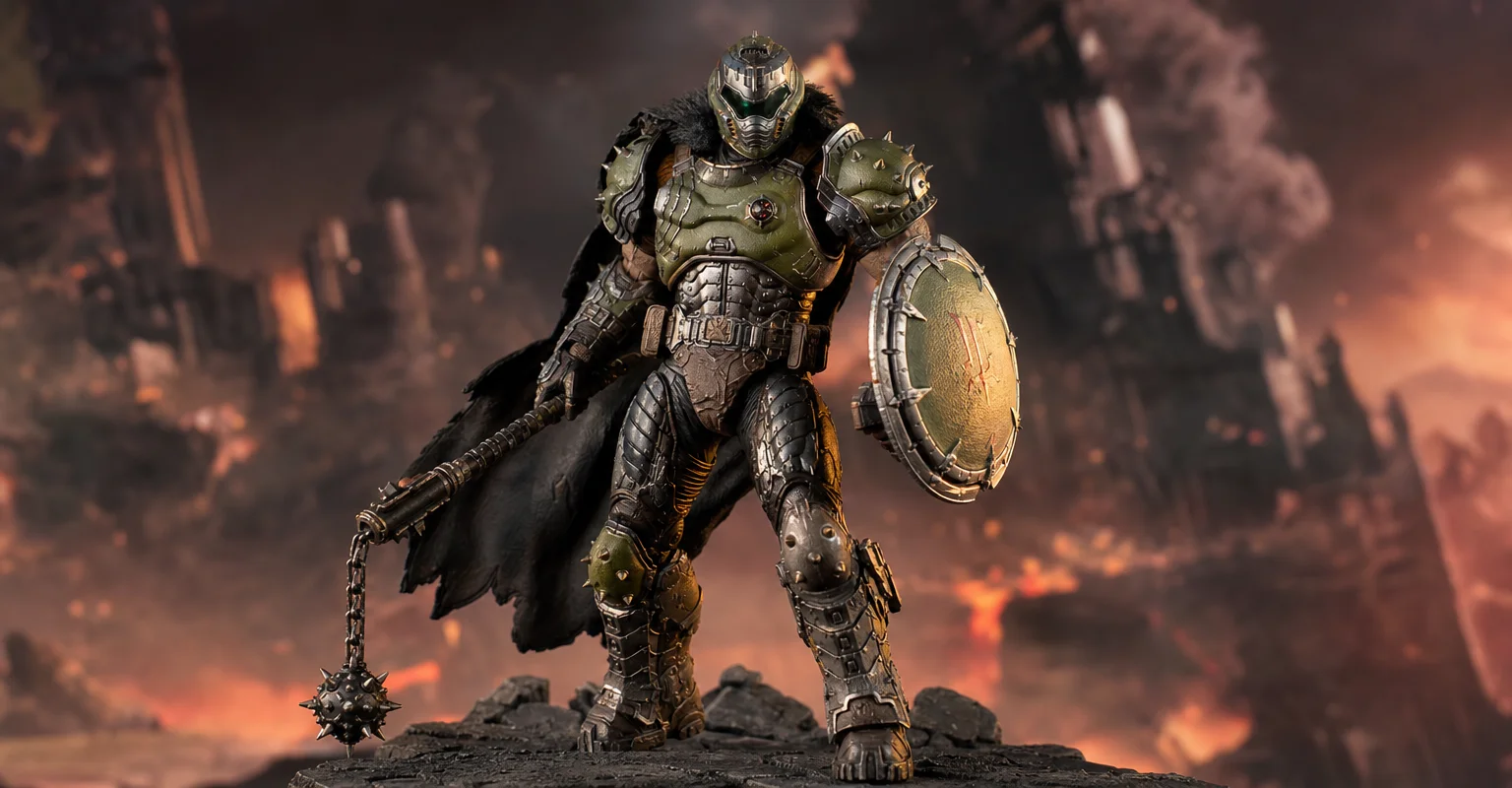
Pre-Order Alert: Good Smile Company Figma Doom: The Dark Ages – Doom Slayer DX Edition
The new Good Smile Company Figma Doom: The Dark Ages Doom Slayer DX Edition is more than a routine figure drop. It connects collector demand, franchise identity, and the wider appeal of Doom as one of gaming’s most durable icons.
Audio EQ Minimalism: Small Changes That Improve Footstep Readability
EQ can help, but big curves often destroy distance and direction cues. Use minimal moves to improve footsteps without turning audio into mush.
Background Load Killers: The PC Checklist That Stops Random Heavy Feel
If the same game feels great one day and heavy the next, suspect background load. This checklist removes the common culprits: overlays, sync, scans, and scheduling spikes.
Ethernet vs Wi-Fi for Gaming: When Wi-Fi Is Enough and When It Isn’t
Wi-Fi can be fine for casual play, but competitive stability still favors Ethernet. Use a simple decision checklist based on spikes, distance, and load.
Mouse Acceleration vs Raw Input: How to Choose Without Breaking Aim
Acceleration isn’t evil — inconsistency is. Learn what raw input changes, when acceleration makes sense, and how to choose a stable setup without resetting your muscle memory daily.
Overdrive Tuning: The Clean Way to Reduce Blur Without Ghosting
Overdrive can improve clarity or add ugly halos. Use this simple method to pick the clean middle setting that reduces blur without ghosting artifacts.
QoS Myths for Gaming: What Helps, What Hurts, and the Real Priority
QoS is not a magic ‘gaming’ toggle. Good queue management reduces latency under load. Bad QoS adds jitter or breaks fairness. Here’s the stable way to think about it.
Router Checklist for Gaming: Settings That Actually Change Stability
Most router ‘gaming’ features are noise. This checklist focuses on what actually changes feel: queue management, stable Wi-Fi, and avoiding load spikes.
Streaming Stutter: Storage, Decompression, and the Hitch Pattern
Streaming stutter is asset loading: new areas, new textures, periodic hitches. Learn the pattern, what to change first, and what upgrades actually help.